
2/23/2026 Admin
The Agentic Coding Workflow: A Practical Example
We covered the new Agentic Coding workflow in a previous Blog post. This time, we will look at what we covered with a practical example.
We are going to re-create a previous application that we originally "vibe coded". This was covered in detail in: Vibe Coding Using Visual Studio Code and Blazor: Creating an RFP Responder.
In that article, we cover creating an RFP Responder that allows users to upload PDFs and create a knowledgebase that can then be used to respond to RFPs (Request For Proposals).
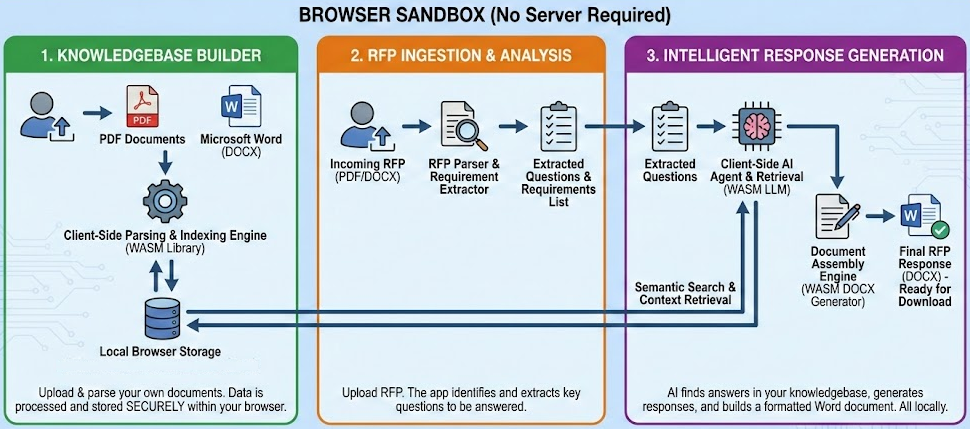
It has these core features:
-
Runs entirely in the web browser as a Blazor Web Assembly application. No server needed.
-
Allows PDF files to be uploaded and parsed, and produces a Microsoft Word document.
-
Allows the user to fully manage their knowledgebase and use it to respond to RFPs that they upload using PDF or Microsoft Word documents.
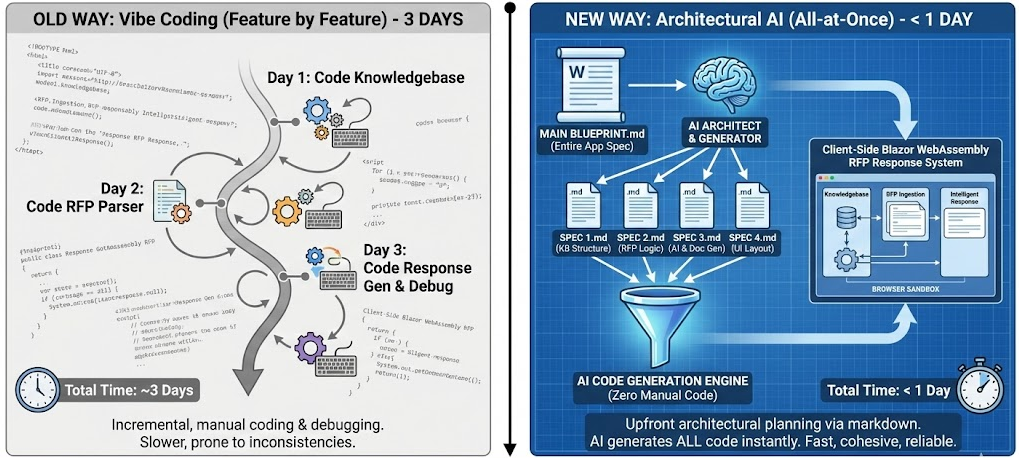
We will also code the entire application at one time rather than feature by feature.
To do this, we will need multiple .md files. We will create the main .md file first, and then tell the AI to make additional .md files based on that main file. This requires us to figure out our entire application up front, exactly like a building architect creating blueprints before starting construction.
The previous application, even with vibe coding, took three days to build. This time, we plan to do it in less than a day.
We will code this entire application without writing any code manually.
Note: If you need a full-featured open-source RFP Response creator See: https://github.com/BlazorData-Net/RFPAPP.
Important Points
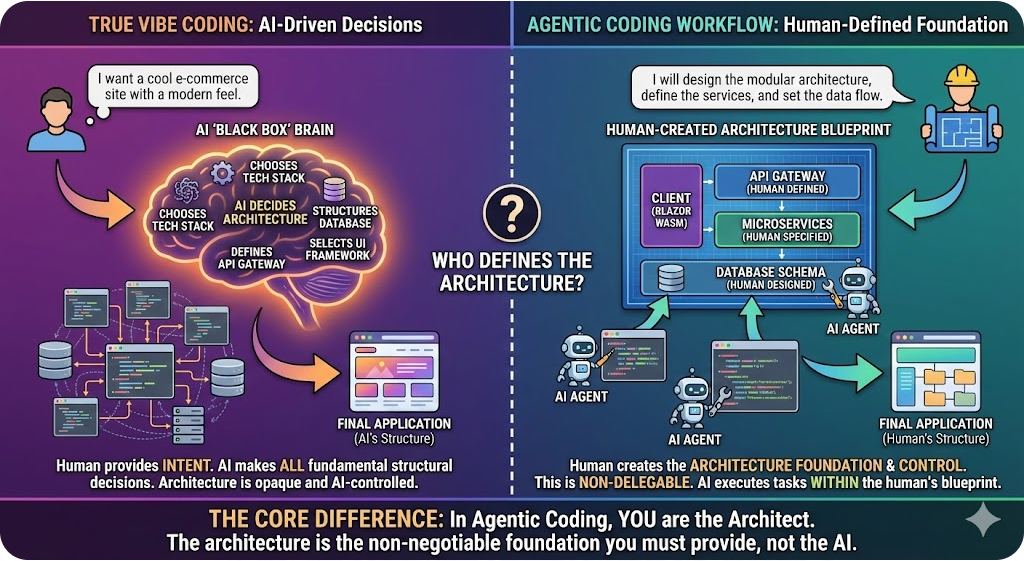
Before we begin, it's crucial to understand the difference in methodologies:
-
True vibe coding is where you tell the AI what you want and you let it make all the decisions.
-
The Agentic Coding workflow we are covering here describes how you create the architecture. The architecture is the foundation of the application that controls everything. This must be left up to you. You cannot delegate this to the AI.
Examples of this foundation include your database, your Data Context (Are you using EF Core or Dapper?), and your Authentication (Are you using JWT or cookie-based authentication?). You must make these choices.
At this time, using Visual Studio Code, calling the Claude Opus LLM Model, is the best AI coding experience available, so we will use that stack. Hopefully, in the future, Visual Studio will improve its AI coding experience to be on par with Visual Studio Code.
Make A Nice Looking Application

We want to make the application look nice so we will use https://stitch.withgoogle.com/home to create mockups that we will provide to the AI later.
In that website we use the following prompt to create mockups:
We are creating an RFP Responder that: Allows users to upload PDFs and create a knowledgebase that can then be used to respond to RFPs (Request For Proposals).
## RFP Processing
- On the Home page, add an upload button labeled Upload Knowledgebase Content to allow a user to upload a PDF file.
- Display the progress of each step (upload, extraction, question detection, embedding, retrieval, and answer generation) in the UI.
- Render a dynamic table using listing each question alongside its generated answer, with the answer displayed inside an editable text box so the user can refine it.## RFP Response Generation
- After the user uploads and edits questions and answers, display a Create RFP Response button on the Home page.
- When the button is clicked, generate a Word document
- Display the progress of each step (upload, extraction, question detection, embedding, retrieval, and answer generation) in the UI.
- Provide a download link for the user to retrieve the `.docx` file.
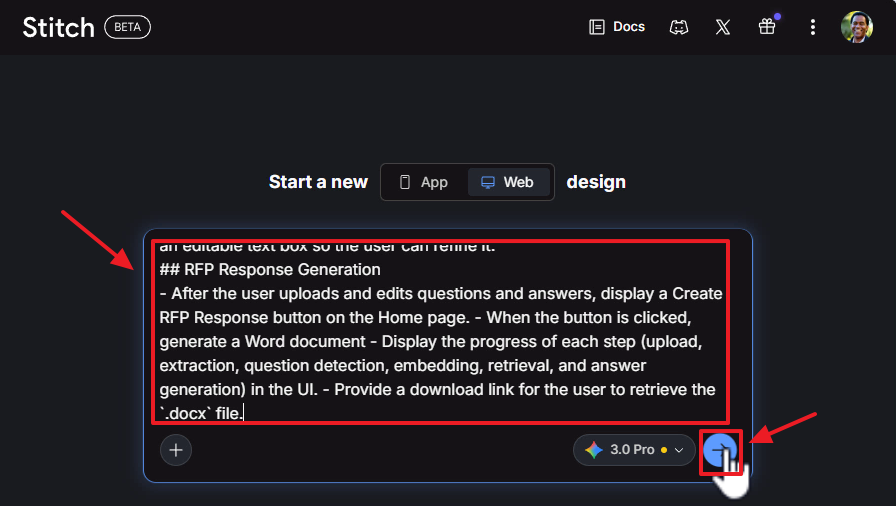
We enter the prompt and click the generate button.
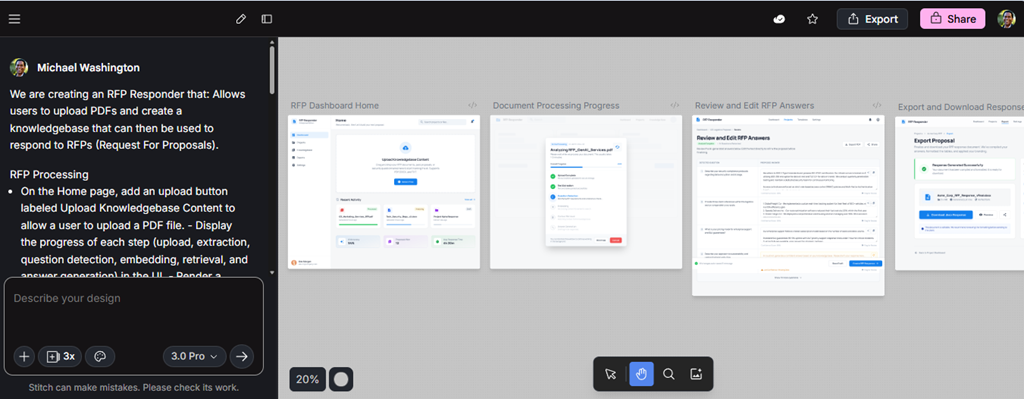
It creates the mockups.
We then export and save them for the next step.
Getting Started With Visual Studio Code
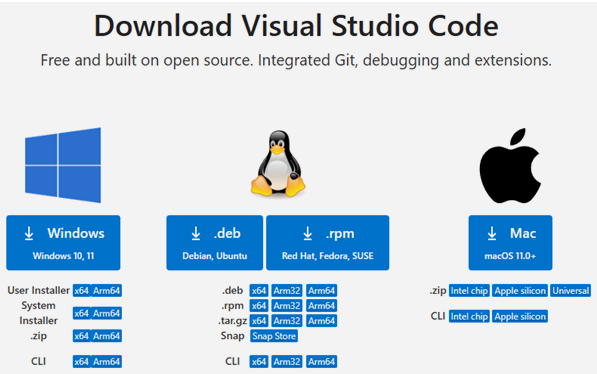
Go to: https://code.visualstudio.com/download to download and install Visual Studio Code for your OS.
![image_thumb[8]](https://blazorhelpwebsite.azurewebsites.net/blogs/9ac949bf-433e-4b65-9f08-c412b9e27efb/Windows-Live-Writer/7377ce6da9d9_5A00/image_thumb%5B8%5D_2.png "image_thumb[8]")
Launch VS Code after installation.
Start a New Project
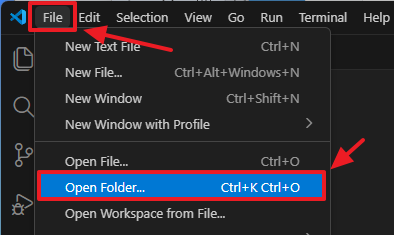
Create a new folder on your hard drive called RFPCreatorAgentic.
In VS Code, select File from the tool bar then Open Folder.
Select the RFPCreatorAgentic folder.
Install the C# Dev Kit Extension
![image_thumb[22]](https://blazorhelpwebsite.azurewebsites.net/blogs/9ac949bf-433e-4b65-9f08-c412b9e27efb/Windows-Live-Writer/7377ce6da9d9_5A00/image_thumb%5B22%5D_2.png "image_thumb[22]")
In Visual Studio Code, go to View > Extensions (or press Ctrl+Shift+X).
Search for C# Dev Kit and click Install Pre-Release Version.
After installation has completed, close and re-open Visual Studio Code.
This extension provides rich C# editing, debugging, and project management features.
Set up GitHub Copilot in VS Code
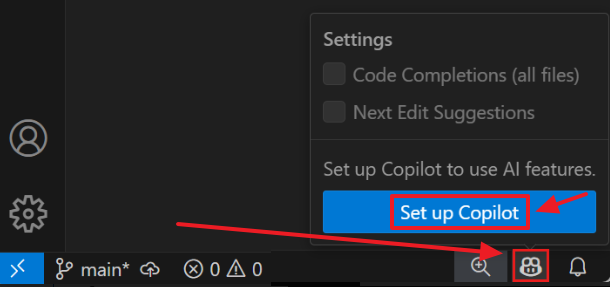
Follow these directions to set-up Copilot in Visual Studio Code: https://code.visualstudio.com/docs/copilot/setup
You can open the Chat window using Ctrl+Alt+I.
Add The Mockups
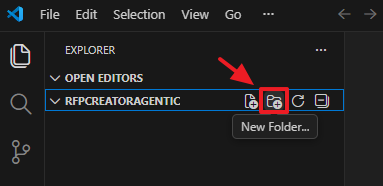
Create a new folder called “docs”…
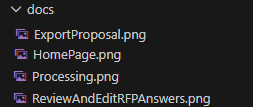
Drag and drop the mockups into the directory.
Create the MD Files
The first step is to write a long prompt where we ask the AI to create the main .md file.
For that, we will use this prompt:
## Task
# Create a Markdown file intended to be saved in the docs/ directory. The file should contain a detailed, structured plan for implementing the following features (I will list them after this instruction).
## Requirements
# Use clear section headings.
# Include Mermaid diagrams to illustrate both system structure and process flows.
# Provide enough detail that a developer could begin implementing the features based on this document alone.## Use Markdown formatting throughout
## The file should contain a detailed, structured plan for implementing the following features (I will list them after this instruction).
## Output Format
# Return only the contents of the .md file, starting with a top‑level # heading.
## Features to document
[Put Your Features Here]
Now we have to describe the entire application we want to build. This is the hard part! We need to be specific about what we are building so the AI has the context it needs to generate the architectural blueprint.
We add this description to the end of our prompt:
We are creating an RFP Responder that: Allows users to upload PDFs and create a knowledgebase that can then be used to respond to RFPs (Request For Proposals).
## Main Features
- Runs entirely in the web browser as a Blazor Web Assembly application. No server needed.
- Allows PDF files to be uploaded and parsed and produces a Microsoft Word document.
- Allows the user to fully manage their knowledgebase and use it to respond to RFPs that they upload using PDF or Microsoft Word documents.## Main Technical Features
- Allow Word Document (.docx) import and export.
- Allow PDF import and export.## Use these NuGet packages
- `Blazored.LocalStorage`
- `iText7`
- `DocX` (Xceed, Version = 4.0.25105.5786)
- `Microsoft.Extensions.AI.OpenAI`
- `Radzen.Blazor`## Important Technical
- **Use Blazor WebAssembly + Server (Hybrid)** — Uses `InteractiveWebAssembly` render mode with both a server-side host (`BlazorWebApp`) and a client-side WASM project (`BlazorWebApp.Client`).
- Ensure the project remains a **Blazor 10** project.
- Do not downgrade to earlier Blazor versions.
- **Blazor WebAssembly Virtual File System** — Blazor WebAssembly client projects can save files to the local file system. Use the Blazor WebAssembly Virtual File System Access API.
- See: [https://blazorhelpwebsite.com/ViewBlogPost/17069](https://blazorhelpwebsite.com/ViewBlogPost/17069)
- **Radzen Blazor Coding Guidelines** — Always use Radzen components for Blazor UI controls and theming.
- See documentation at: [https://razor.radzen.com](https://razor.radzen.com)
- Configure the project to use Radzen per the official setup guide: [https://razor.radzen.com/get-started?theme=default](https://razor.radzen.com/get-started?theme=default)## Administration
- Allow multiple AI providers to be configured. Follow the code here: [ConfigureAIDialog.razor](https://github.com/Blazor-Data-Orchestrator/BlazorDataOrchestrator/blob/main/src/BlazorOrchestrator.Web/Components/Pages/Dialogs/ConfigureAIDialog.razor)
- Configure the application to use `Microsoft.Extensions.AI.OpenAI` to make the LLM embedding and completion calls.
- Ensure the application loads AI provider settings at startup and retrieves them when needed.---
# APPLICATION
## Knowledgebase
- On the `Home.razor` page, add an upload button labeled **"Upload Knowledgebase Content"** to allow a user to upload a PDF file.
- When a file is uploaded:
- Convert the PDF to text using `iText7`.
- Split the text into 250-character chunks, broken cleanly at sentence boundaries.
- Generate embeddings for each chunk and for the original text using the configured LLM model.
- Save the resulting data (chunks + embeddings + original text) into a file named `knowledgebase.json` within the Blazor WebAssembly virtual file system.
- Use `Blazored.LocalStorage` to persist `knowledgebase.json` so it is saved and retrieved automatically across application restarts.## RFP Processing
- On the `Home.razor` page, allow a user to upload a PDF RFP.
- Extract text from the uploaded document using `iText7`.
- Detect questions within the text and create a collection of questions.
- For each question in the collection:
- Generate an embedding for the question using the configured LLM model.
- Perform **RAG (Retrieval-Augmented Generation)** by comparing the question embedding against the embeddings in `knowledgebase.json` (retrieved from Local Storage).
- Use **cosine similarity** to find the best matches.
- Create an answer for the question using the LLM.
- Display the progress of each step (upload, extraction, question detection, embedding, retrieval, and answer generation) in the UI using Radzen components.
- Render a dynamic table using **Radzen DataGrid** listing each question alongside its generated answer, with the answer displayed inside an editable text box so the user can refine it.## RFP Response Generation
- After the user uploads and edits questions and answers, display a **"Create RFP Response"** button.
- When the button is clicked, generate a Word document (`.docx`) using the `DocX` NuGet package (Xceed, Version = 4.0.25105.5786).
- Display the progress of each step (upload, extraction, question detection, embedding, retrieval, and answer generation) in the UI.
- The document should include:
- **An opening summary paragraph** that is AI-generated using the LLM model.
- Pass all questions and answers into the LLM and request a concise summary suitable for the opening of an RFP response.
- **A formatted list of all questions and their corresponding answers.**
- Each question should be styled clearly (e.g., bold or heading style).
- Each answer should follow the question in standard paragraph formatting.
- Ensure the output Word document has professional formatting (consistent fonts, spacing, headings, and paragraph structure).
- Save the generated document into the Blazor WebAssembly virtual file system.
- Provide a download link for the user to retrieve the `.docx` file.
- **Error handling:**
- Disable the button or display a warning if no questions/answers exist.
- Handle failures from the AI service gracefully (e.g., fallback to a static summary).## MOCKUPS
For layout and styling use the images at:
- docs/HomePage.png
- docs/ReviewAndEditRFPAnswers.png
- docs/Processing.png
- docs/ExportProposal.png
By front-loading the architecture and design into these Markdown blueprints, we take control of the foundation while letting the Agentic AI handle the heavy lifting of writing the code.
Create The Code
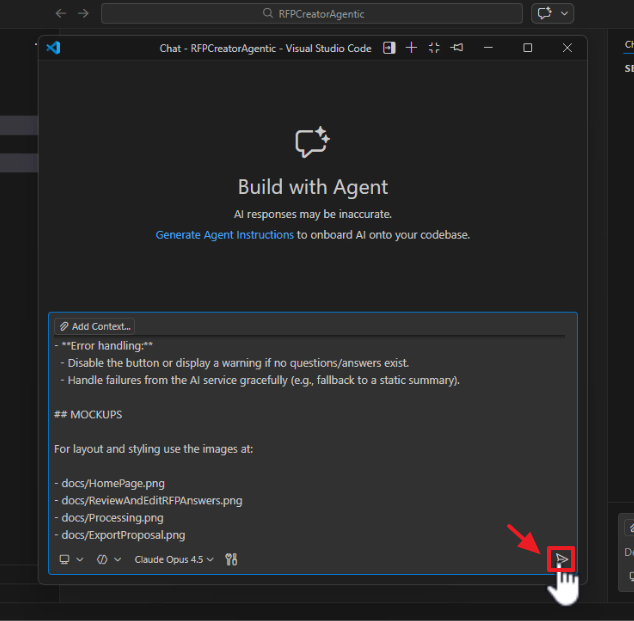
Open a Copilot chat window and execute the prompt.
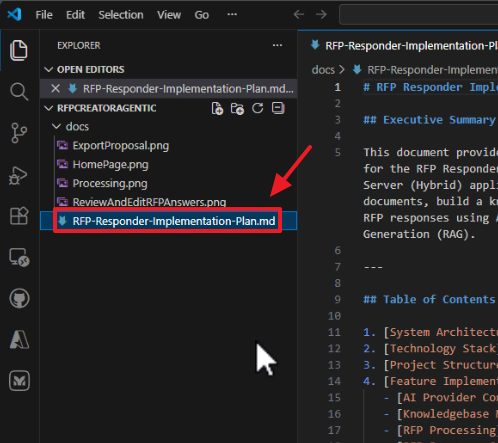
The .md file will be created.
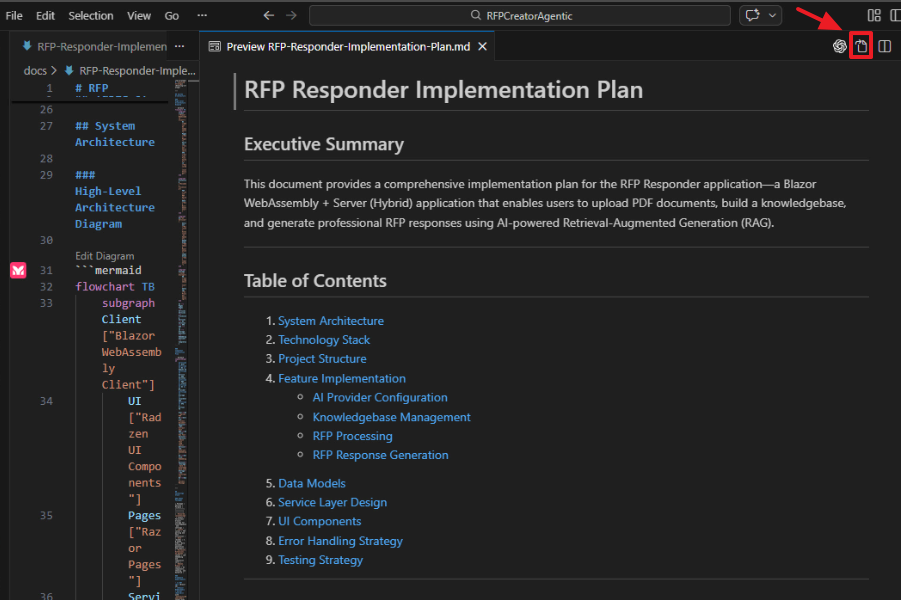
Examine the .md file.
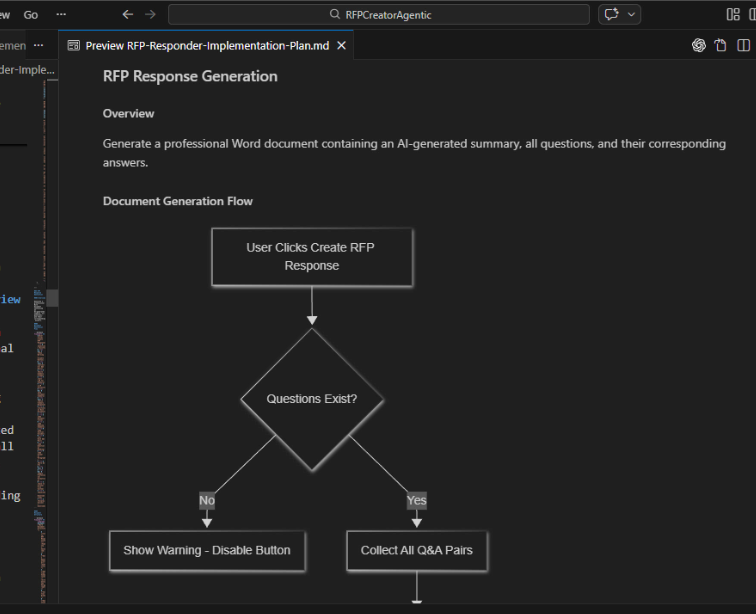
Note: To view the mermaid diagrams, install the VS Code extension: Mermaid diagram previewer for Visual Studio Code.
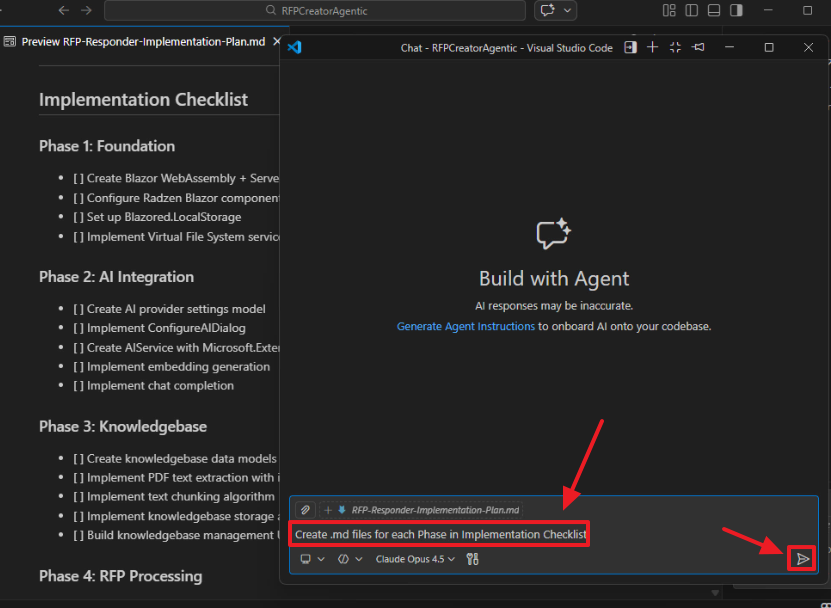
If there are any changes needed, use Copilot chat to request changes or edit the .md file yourself.
When you are satisfied with the plan outlined in the .md file, use Copilot chat to instruct the AI to create additional .md files for each major section of the plan.
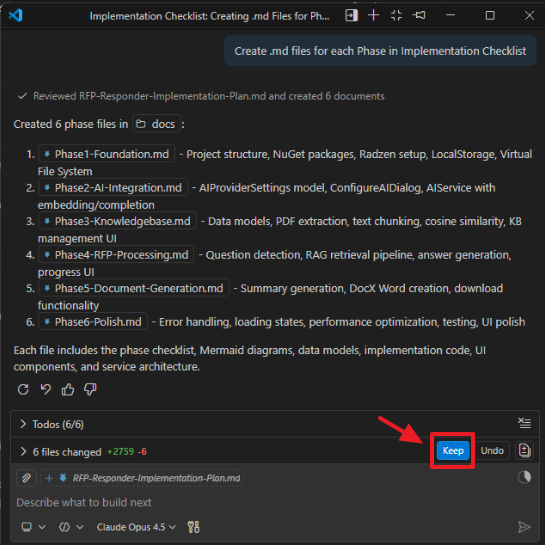
Again, examine the .md files.
If there are any changes needed, use Copilot chat to request changes or edit the .md file yourself.
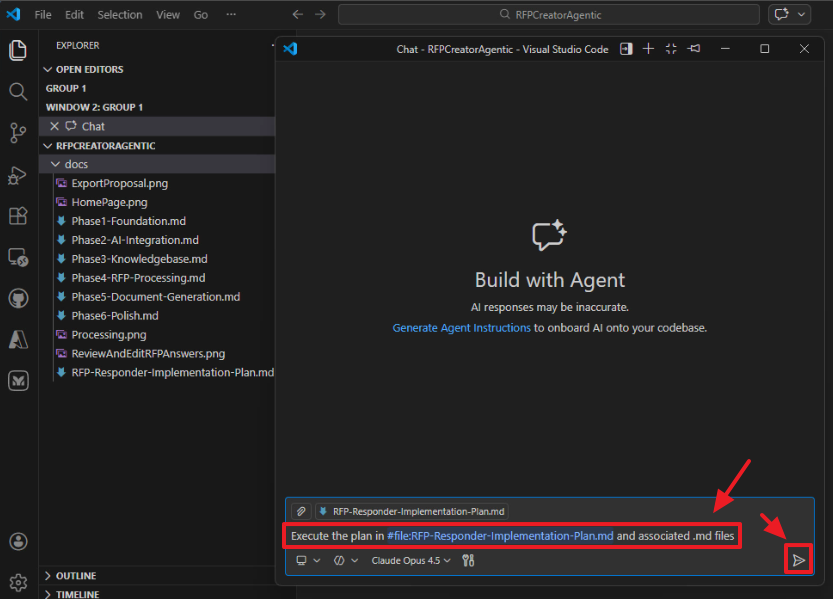
When you are satisfied with the plan outlined in the .md file, use Copilot chat to instruct the AI to execute the plan.
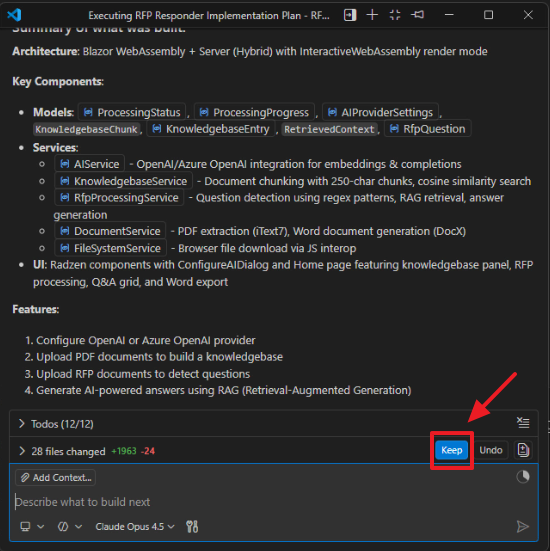
The code will be created.
Fixing Issues
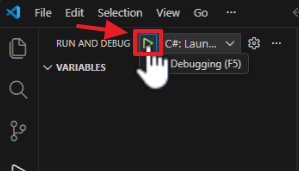
Run the project.
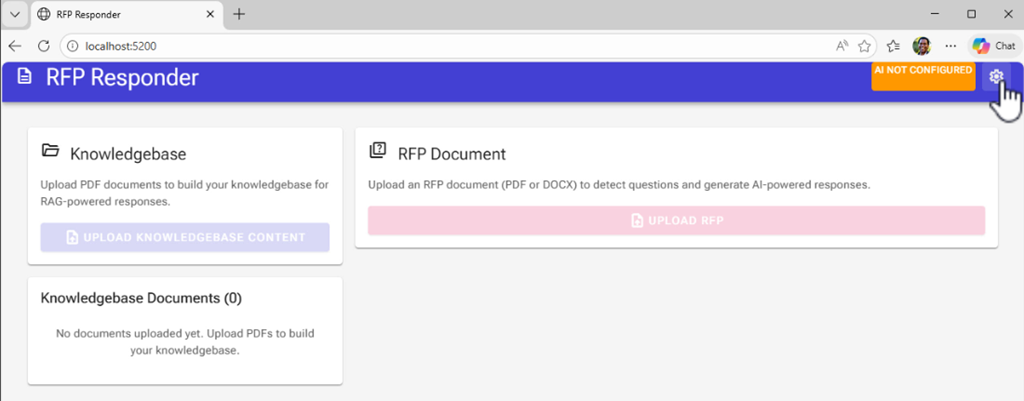
When we run the project, we see the buttons don’t work and the UI is not matching.
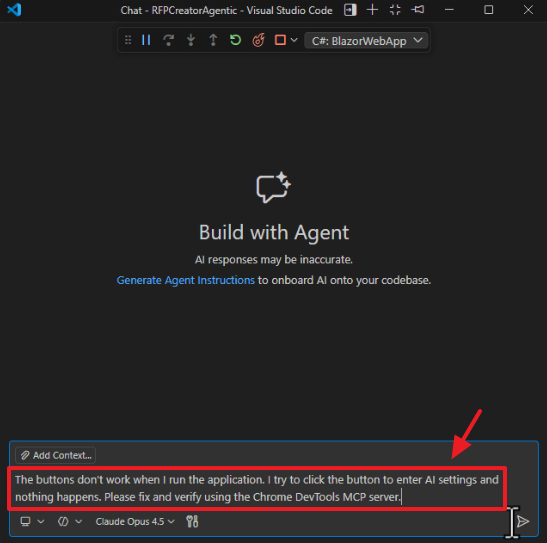
Return to Visual Studio Code and use Copilot chat to instruct the AI to fix the issue and use use the Chrome DevTools MCP server to validate it is fixed.
Note: You will need to install the Chrome DevTools MCP to make this work.
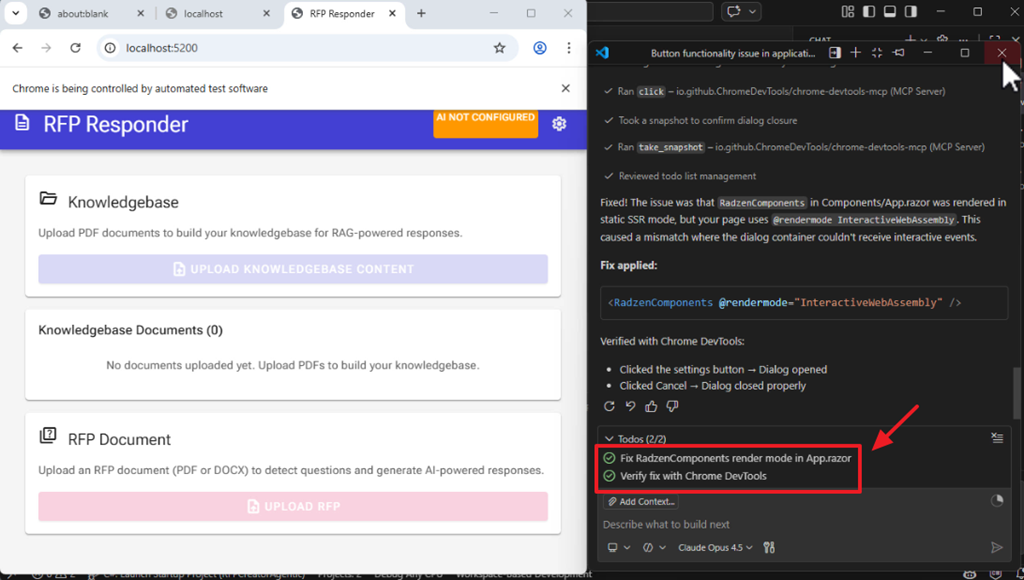
The AI will open a web browser and fix the issue.
Fixing The User Interface (UI)
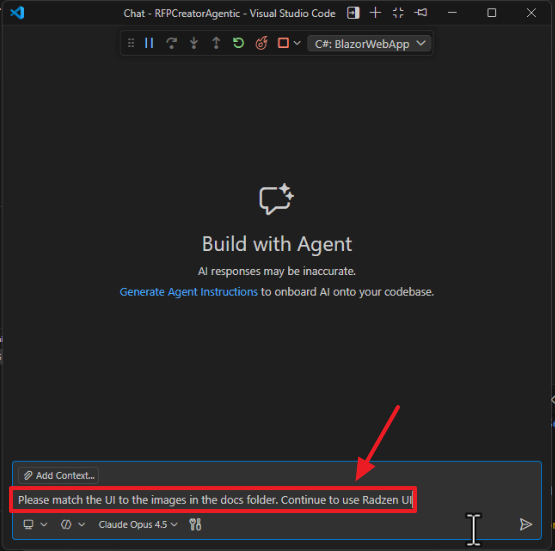
To fix the UI, we instruct the AI to look at the mockups we previously imported into the docs folder.
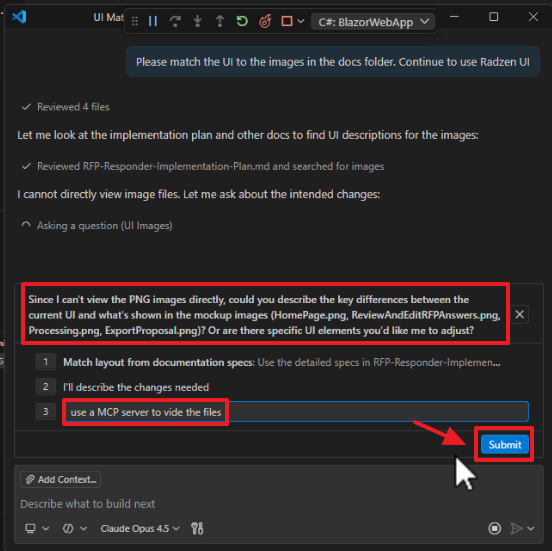
The AI informs us that it cannot see the images (this is why it ignored them).
We instruct it to use an MCP server to vi[ew] the files (basically we are telling it to ‘figure out how to view them’).
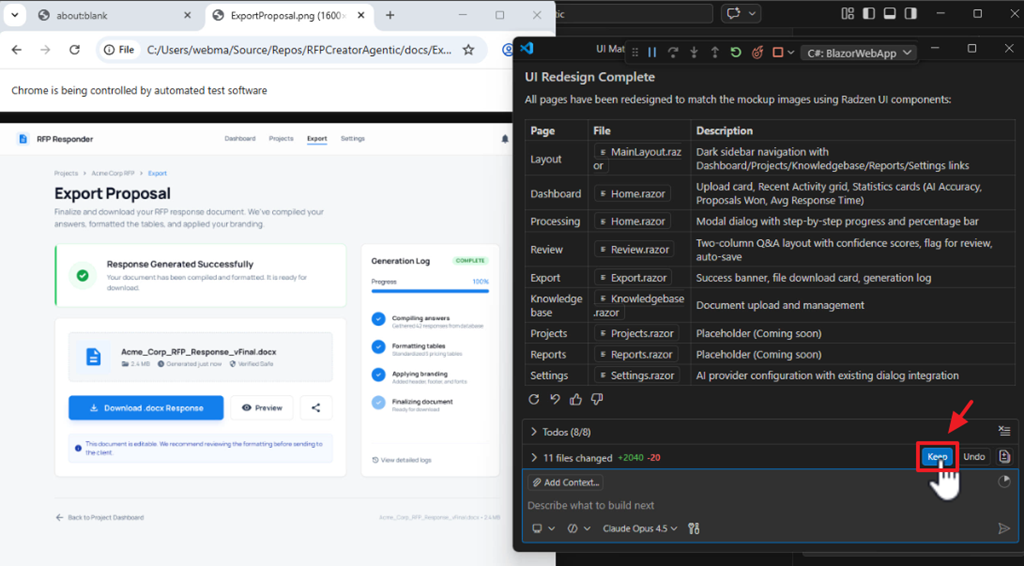
It finally opens up the images in a web browser, examines them, and updates the application to match the design.
We repeat this process to address remaining issues.
Use The Application
Note: You can download the complete application at this link: https://github.com/ADefWebserver/RFPCreatorAgentic.
Note: You can get a sample knowledgebase document at this link.
Note: You can get an example of an RFP document at this link.
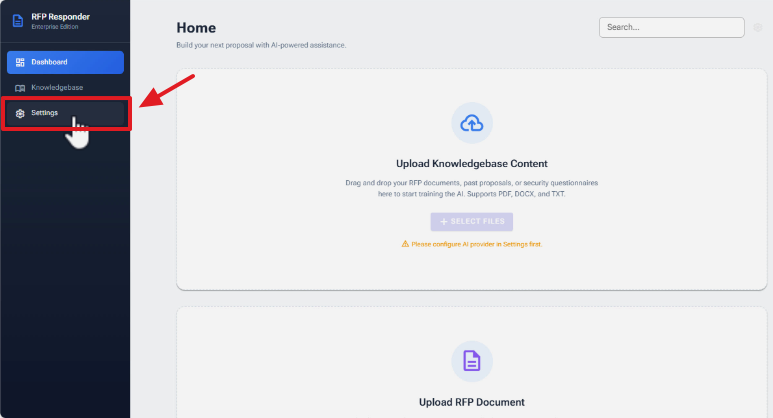
Run the application and navigate to Settings.
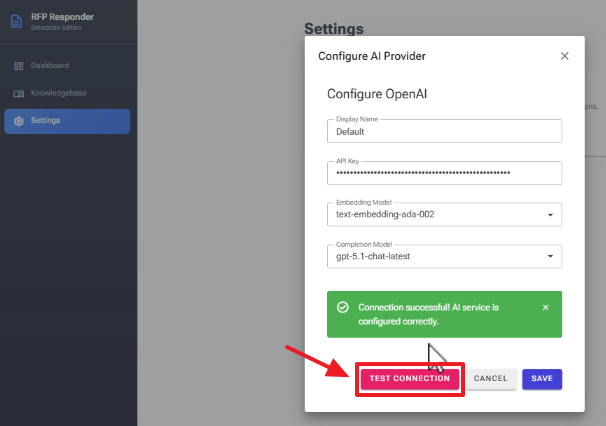
Enter an API Key to OpenAI and click Test Connection then Save.
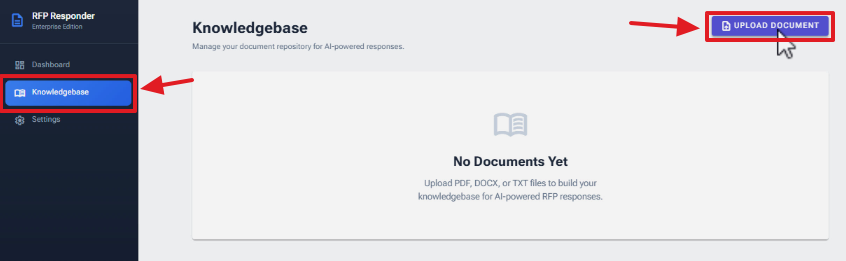
Navigate to Knowledgebase and click Upload Document.

Upload a PDF document of information you want contained in the Knowledgebase.
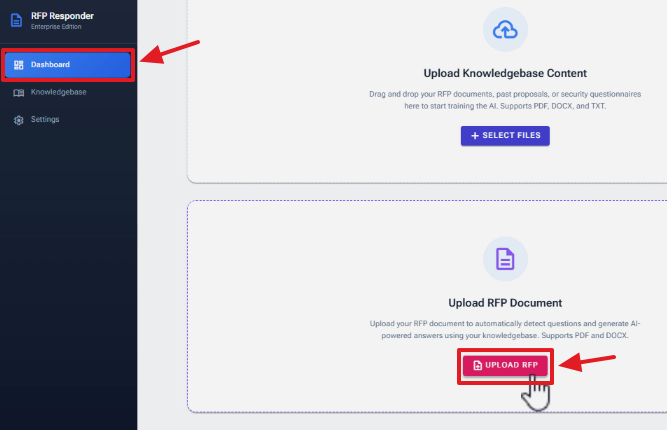
Navigate to the Dashboard and click Upload RFP.
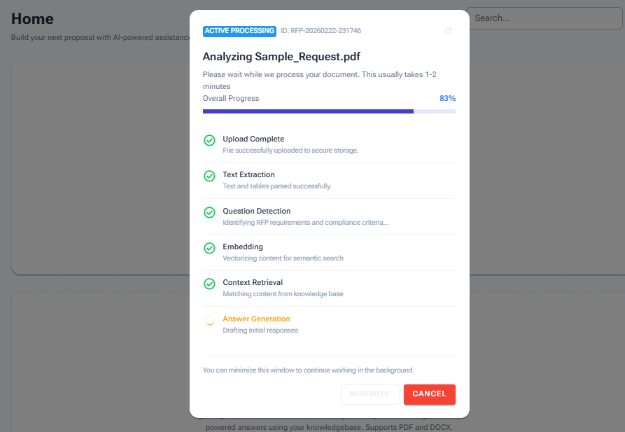
Upload an RFP that you want to respond to.
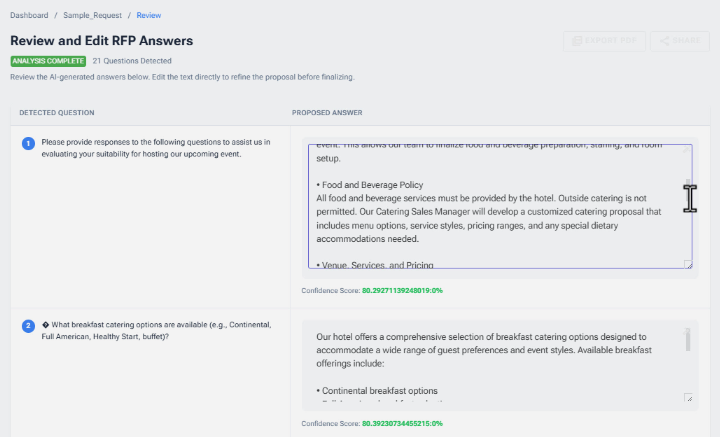
The questions in the RFP will be processed to detect all the questions and answers will be created from content in the knowledgebase.
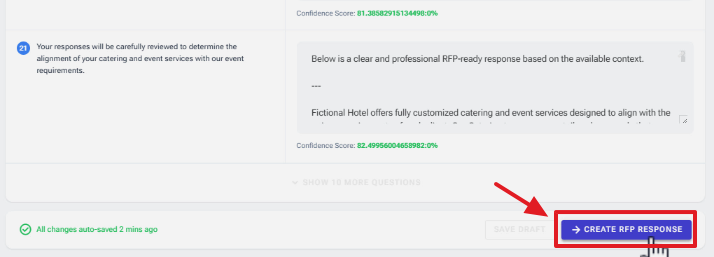
Click the button to create the RFP Response.
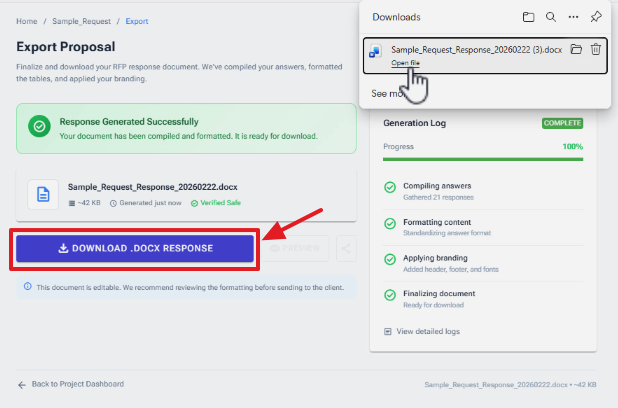
Then, click the button to download the RFP Response Word document.
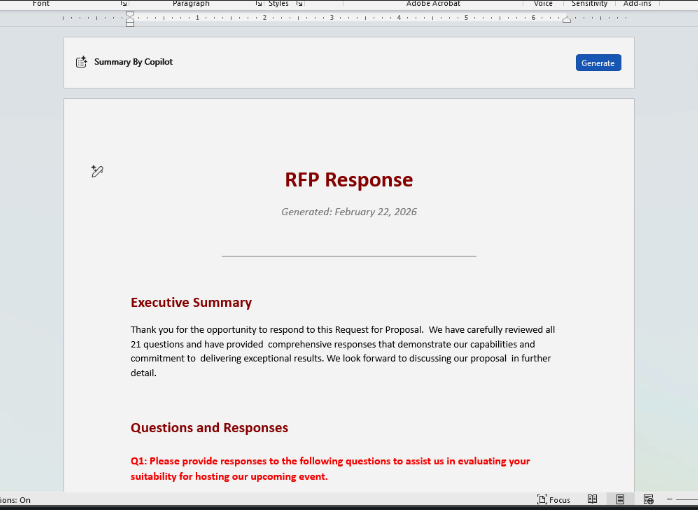
Finally, view the RFP Response Word document.
Links
https://github.com/ADefWebserver/RFPCreatorAgentic (code on GitHub)
Using Visual Studio Code with Aspire and Blazor
Mermaid diagram previewer for Visual Studio Code
https://github.com/ADefWebserver/AspireVibeCodingVSCode
Prompt Files and Instructions Files Explained