
10/13/2026 Admin
Walk-Thru: A Blazor Azure Inventory, Knowledge Graph, and AI Chat Application
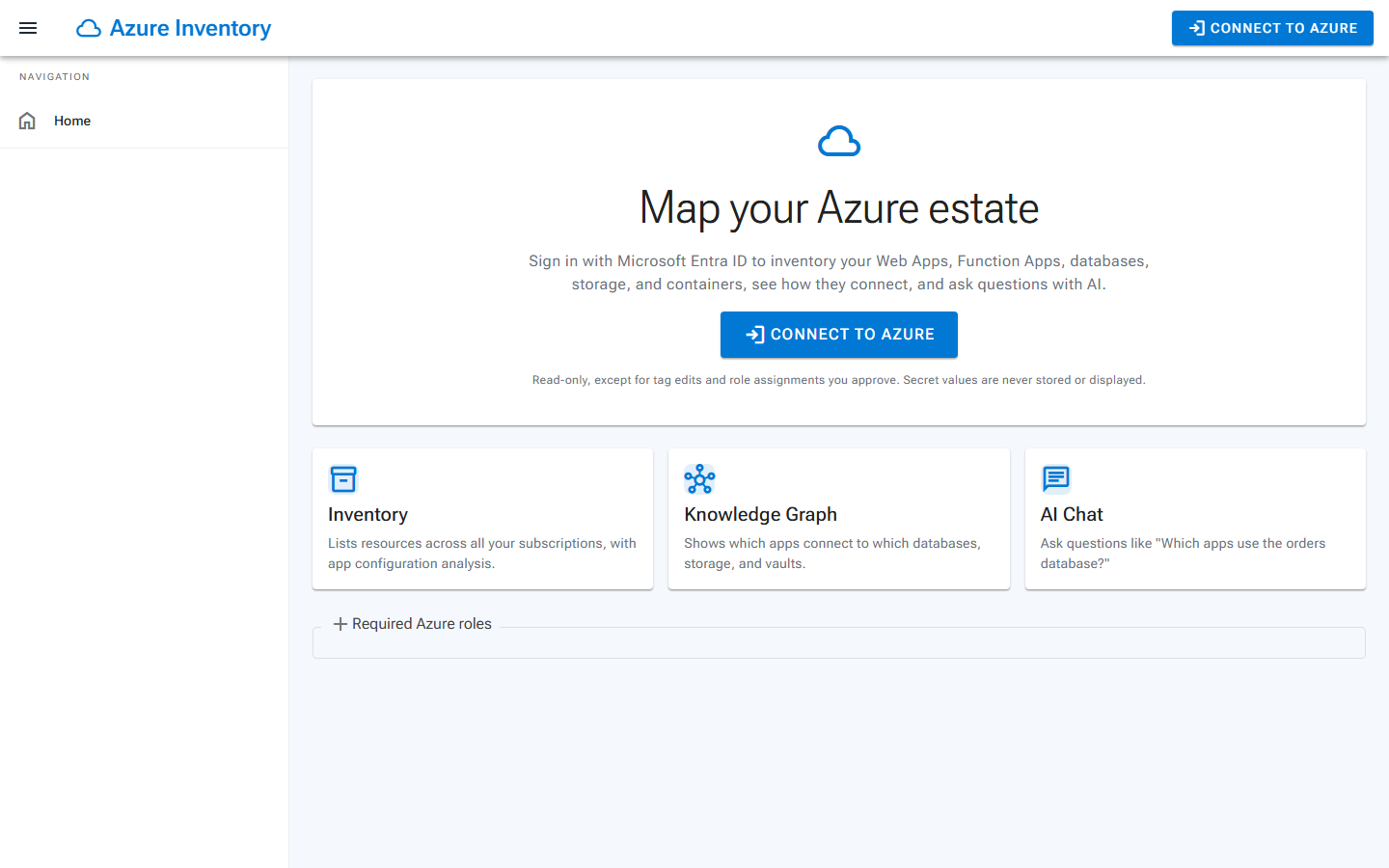
Azure Inventory is a .NET 10 Blazor Server application (using Radzen components) that signs users in with Microsoft Entra ID, inventories the Azure resources they can see, analyzes Web App, Function App, and Container App configuration to detect connections, builds an in-memory knowledge graph, visualizes it with vis-network, and answers questions through an AI chat backed by graph tools and a self-hosted, read-only Azure MCP Server.
In this article we will walk through the solution: the projects, the configuration you need to supply, the screens, and the code that makes each screen work.
The Projects
The solution is made up of four projects:
| Project | Purpose |
|---|---|
BlazorAzureInventory | The Blazor Server app (pages, Radzen components, Azure SDK inventory, analysis, graph, AI chat, MCP client) |
BlazorAzureInventory.Tests | xUnit and bUnit tests, including the secret sentinel test |
BlazorAzureInventorySolution.AppHost | Aspire AppHost: runs the app and the azure-mcp container |
BlazorAzureInventorySolution.ServiceDefaults | OpenTelemetry, health checks, service discovery, resilience |
There is also an AzureMcpServer Dockerfile for the derived Azure MCP Server image (HTTP, On-Behalf-Of, --read-only, and a tool allowlist).
Key Behaviors
Before looking at the screens, it helps to understand the rules the application follows:
- User identity drives every Azure call. ARM, Resource Graph, and Kudu calls use the signed-in user's delegated token. The app never reads customer resources with its own identity.
- Secrets are never stored or shown.
ConfigEntryhas no value property; only identifiers (hosts, database, account, container, vault, and secret names) leave the analysis layer. Values render as••••••. - Read-only, except for tags and role assignments you approve. The only writes are Azure tags (
Microsoft.Resources/tags), made with the signed-in user's token after the user reviews a diff and clicks Save or Apply, and the required role assignments, made only after the user confirms them under Required Azure roles. - In-memory, per-user sessions. Snapshots, graphs, and encrypted AI keys live in a bounded in-memory cache keyed by tenant and object ID, and are cleared on sign-out.
Prerequisites
To run the solution you will need:
- .NET SDK 10
- Docker (only to run the Azure MCP Server container locally through Aspire)
- Two multi-tenant Entra ID app registrations:
azinventory-web: redirect URIhttps://localhost:7113/signin-oidc(and your App Service URL), front-channel logout/signout-oidc, delegated permissionsUser.Readand Azure Service Managementuser_impersonation, plus the MCP scope.azinventory-mcp: exposes a delegated scope such asMcp.Tools.Read, listsazinventory-webinknownClientApplications, and is allowed to call ARM on behalf of the user.
Configuration
Settings live in BlazorAzureInventory/appsettings.json, and for local development you replace the <...> placeholders in the git-ignored appsettings.Local.json files. While any required value is missing, the home page lists the exact steps to fix it (that is what you are seeing in the first screenshot above).
You can also override the values with user secrets on the BlazorAzureInventory project (these take precedence over appsettings.Local.json):
dotnet user-secrets --project BlazorAzureInventory set "AzureAd:ClientId" "<client-id>"
dotnet user-secrets --project BlazorAzureInventory set "AzureAd:ClientCredentials:0:SourceType" "ClientSecret"
dotnet user-secrets --project BlazorAzureInventory set "AzureAd:ClientCredentials:0:ClientSecret" "<dev-only-secret>"

# Optional: a default AI provider so users do not need their own key
dotnet user-secrets --project BlazorAzureInventory set "AI:DefaultProvider:ServiceType" "AzureOpenAI"
dotnet user-secrets --project BlazorAzureInventory set "AI:DefaultProvider:Endpoint" "https://contoso.openai.azure.com/"
dotnet user-secrets --project BlazorAzureInventory set "AI:DefaultProvider:AIModel" "gpt-4o"
dotnet user-secrets --project BlazorAzureInventory set "AI:DefaultProvider:ApiKey" "<key>"
Note: AI:DefaultProvider is optional. If you leave ServiceType or ApiKey empty, each user supplies their own provider and key on the Settings page.
The Settings Page
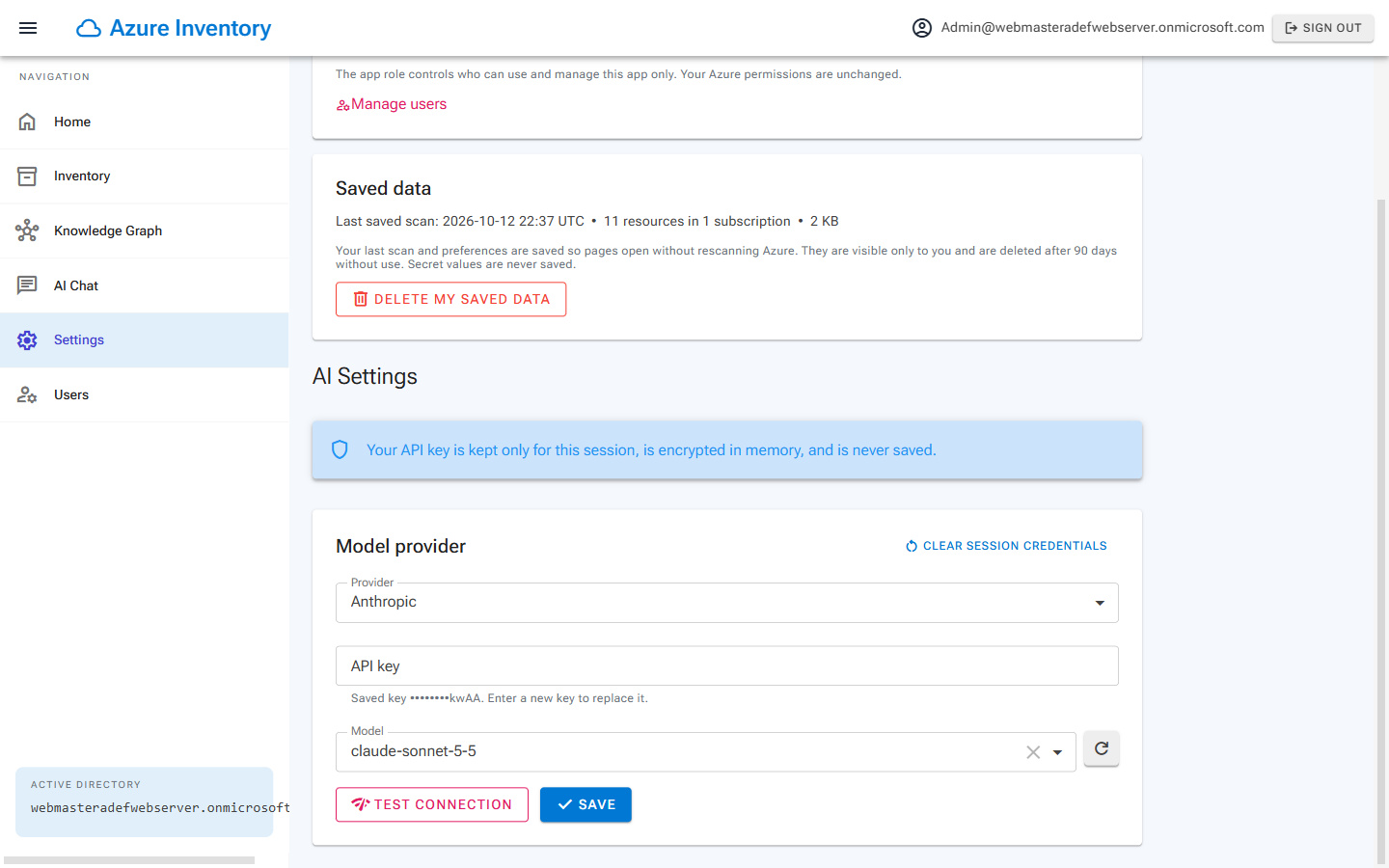
The Settings page is reached from the navigation menu and hosts the AI service settings editor. Here a user selects the AI provider (OpenAI, AzureOpenAI, AzureAIFoundry, Anthropic, or GoogleAI), the model, and enters an API key.
After clicking Save, the settings are stored for the session only. The key is encrypted and held in the bounded in-memory cache keyed by tenant and object ID, and it is cleared when the user signs out. Nothing is written to a database or to disk.
The Inventory Page
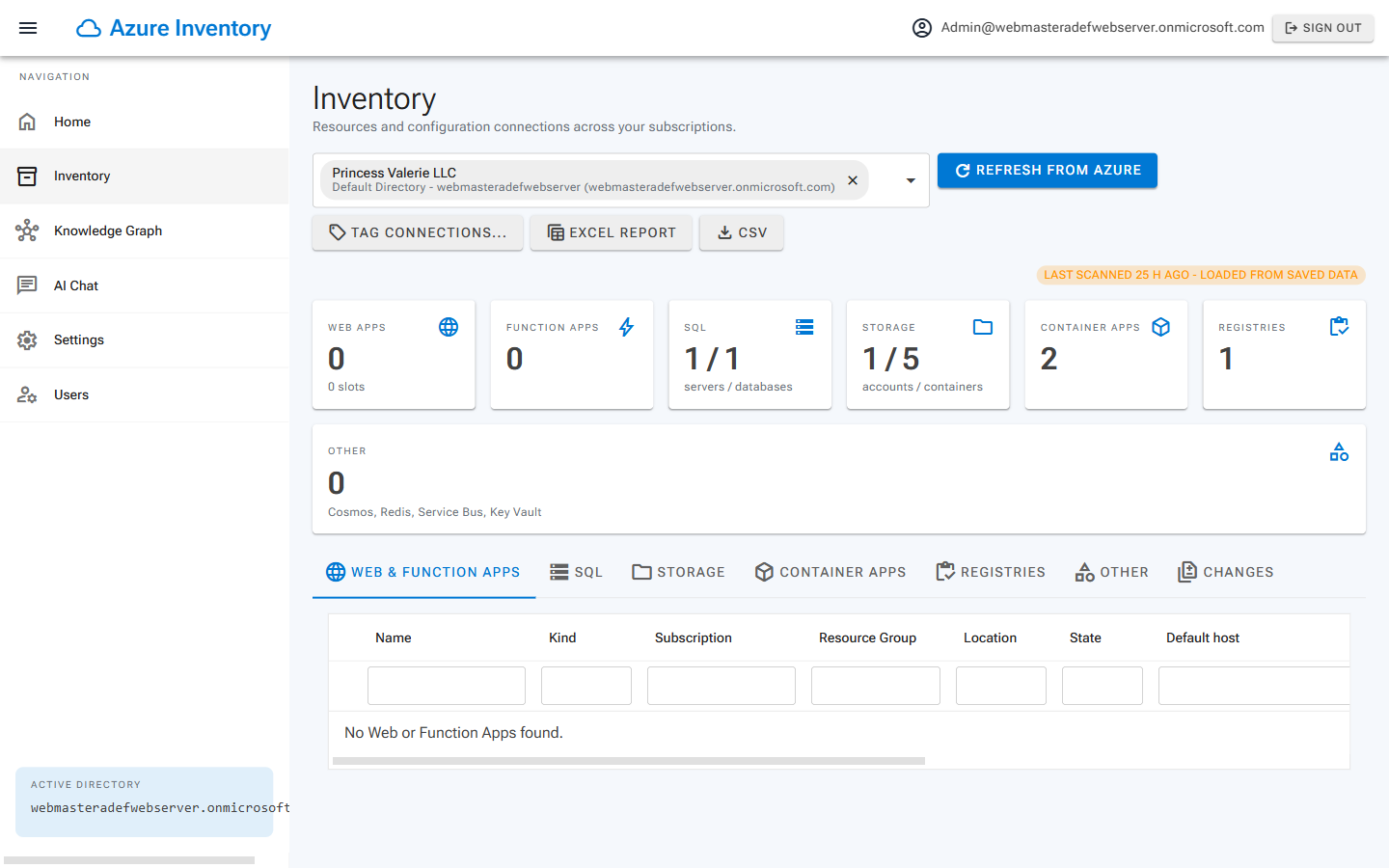
The Inventory page is where a scan starts. You pick one or more subscriptions with the subscription picker and start the scan.
The scan runs with the signed-in user's token, so a user only ever sees the subscriptions and resources that Azure itself allows them to see. The results are displayed in grids for Web Apps, Container Apps, SQL, Storage, Registries, Config Entries, and Other Resources.
Clicking any resource name (in the Inventory grids, on Graph nodes and edge endpoints, in the App Configuration header, or on resource links in the chat) opens the resource properties popup, which shows all of its properties, its connections, and its tags. The Tags tab edits tags with validation, a diff preview, and conflict detection.
The scan services are registered as Scoped, which in Server Side Blazor means per circuit, which means per signed-in user:
// Azure access (scoped == per Blazor circuit == per signed-in user)builder.Services.AddScoped<UserContextAccessor>();builder.Services.AddScoped<ArmClientFactory>();builder.Services.AddScoped<AzureContextService>();builder.Services.AddScoped<ResourceGraphInventoryService>();builder.Services.AddScoped<ResourceEnrichmentService>();builder.Services.AddScoped<AppConfigurationReader>();builder.Services.AddScoped<InventoryScanOrchestrator>();
The analysis services, in contrast, hold no user state at all and are registered as Singletons:
// Stateless analysisbuilder.Services.AddSingleton<ScmHostValidator>();builder.Services.AddSingleton<CloudEndpointSuffixes>();builder.Services.AddSingleton<ConfigFlattener>();builder.Services.AddSingleton<SecretClassifier>();builder.Services.AddSingleton<ConnectionClassifier>();builder.Services.AddSingleton<ConfigAnalyzer>();builder.Services.AddSingleton<ResourceMatcher>();builder.Services.AddSingleton<InventoryGraphBuilder>();builder.Services.AddSingleton<InventorySessionStore>();builder.Services.AddSingleton<GraphQueryService>();
The tag services deserve a special mention, because of the comment in Program.cs:
// Tags (TagWriteService is the only code path that writes to Azure)builder.Services.AddSingleton<TagValidator>();builder.Services.AddSingleton<ConnectionTagGenerator>();builder.Services.AddSingleton<TagProposalStore>();builder.Services.AddScoped<ITagStore, ArmTagStore>();builder.Services.AddScoped<TagSyncCoordinator>();builder.Services.AddScoped<TagWriteService>();builder.Services.AddScoped<ITagPermissionChecker, TagPermissionChecker>();builder.Services.AddScoped<ResourceInspector>();builder.Services.AddScoped<ResourceDialogLauncher>();
The Knowledge Graph Page
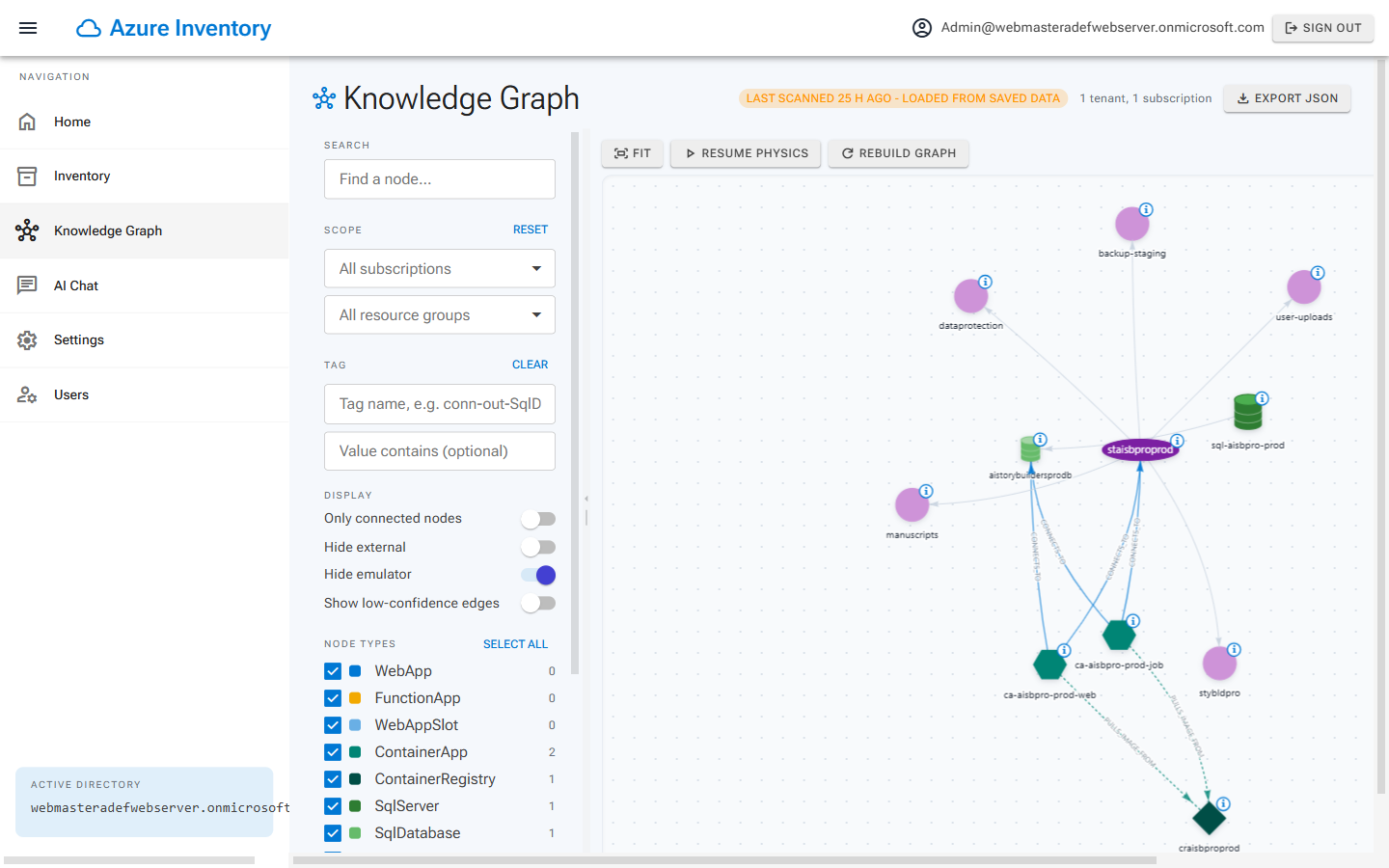
The Knowledge Graph page puts the graph canvas in the center, the filter panel on one side, and the properties of the currently selected node (or edge) on the other.
The canvas itself is the GraphCanvas.razor component, which imports the graph-view.js module and hands it a .NET object reference so the JavaScript side can call back into Blazor when a node or edge is selected:
protected override async Task OnAfterRenderAsync(bool firstRender){if (firstRender){_module = await JS.InvokeAsync<IJSObjectReference>("import", "./js/graph-view.js");_selfRef = DotNetObjectReference.Create(this);await _module.InvokeVoidAsync("init", _containerId, _selfRef);await _module.InvokeVoidAsync("applyFilter", Filter);}if (_module is not null && Graph is not null && !ReferenceEquals(Graph, _renderedGraph)){_renderedGraph = Graph;await RenderGraphAsync(Graph);}}
A large tenant can easily produce a multi-megabyte graph, so the graph is streamed to the browser rather than serialized into one large interop string:
private async Task RenderGraphAsync(GraphDocument graph){_rendering = true;_physics = false;StateHasChanged();// Streaming avoids building one large interop string for multi-MB graphs.var ms = new MemoryStream();await System.Text.Json.JsonSerializer.SerializeAsync(ms, graph, GraphJson.Options);ms.Position = 0;using var streamRef = new DotNetStreamReference(ms, leaveOpen: false);await _module!.InvokeVoidAsync("renderFromStream", streamRef);}
The toolbar above the canvas provides Fit, Freeze physics / Resume physics, and Rebuild graph buttons, and displays the node and edge counts that JavaScript reports back through the OnRenderComplete JSInvokable method.
The filter panel (GraphFilterPanel.razor) lets you search for a node, scope the graph to specific subscriptions and resource groups, filter by tag name and tag value, toggle the node types, and flip a set of display switches:
private IEnumerable<(string Label, Func<bool> Get, Action<bool> Set)> DisplayToggles(){yield return ("Only connected nodes", () => Filter.OnlyConnected, v => Filter.OnlyConnected = v);yield return ("Hide external", () => Filter.HideExternal, v => Filter.HideExternal = v);yield return ("Hide emulator", () => Filter.HideEmulator, v => Filter.HideEmulator = v);yield return ("Show low-confidence edges", () => Filter.ShowLowConfidence, v => Filter.ShowLowConfidence = v);}
The tag filter list is built from the tags that are actually on the nodes, with any trailing -1, -2 sequence numbers stripped off, so that a tag such as conn-out-SqlDatabase-2 appears once as conn-out-SqlDatabase.
The AI Chat Page
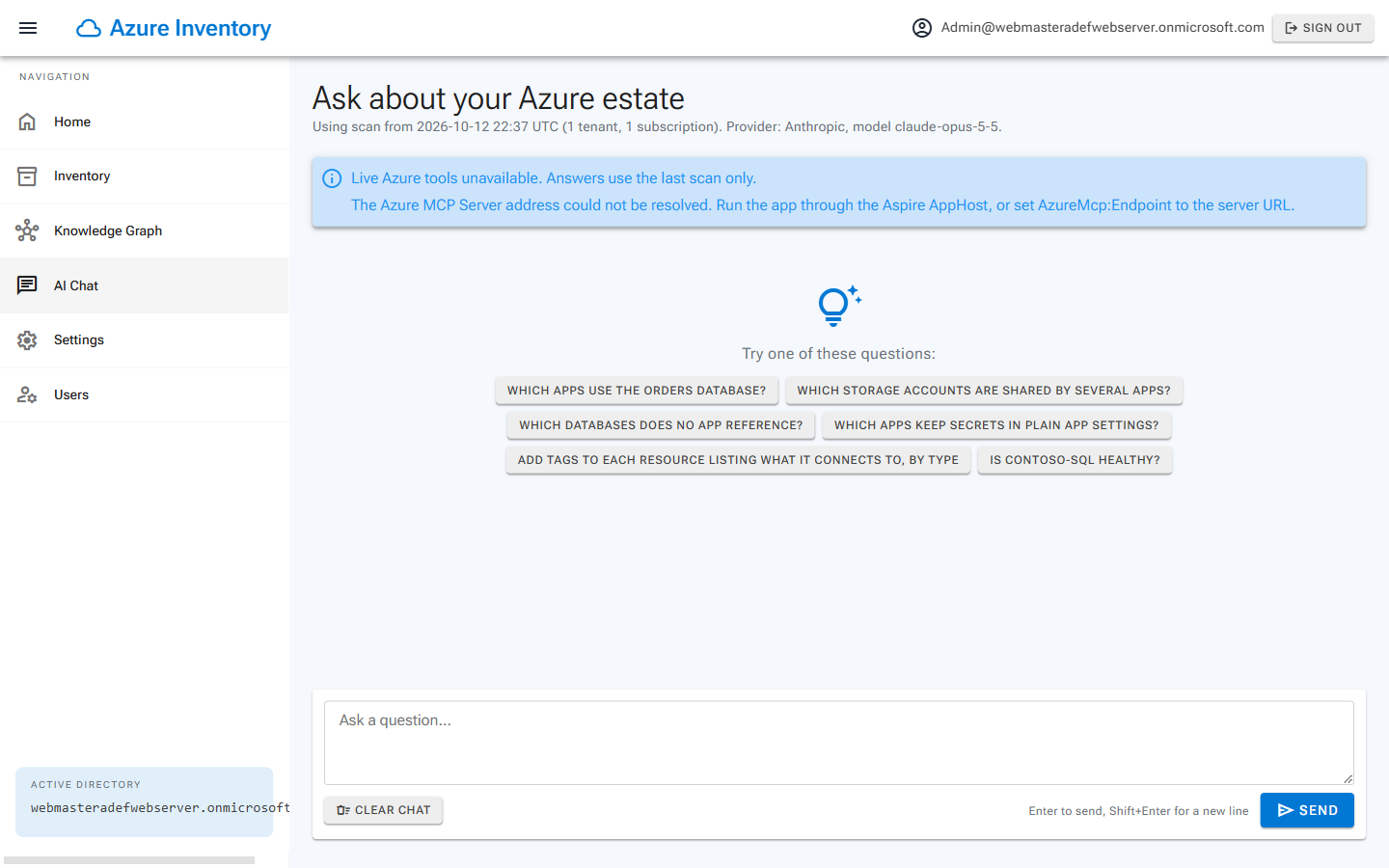
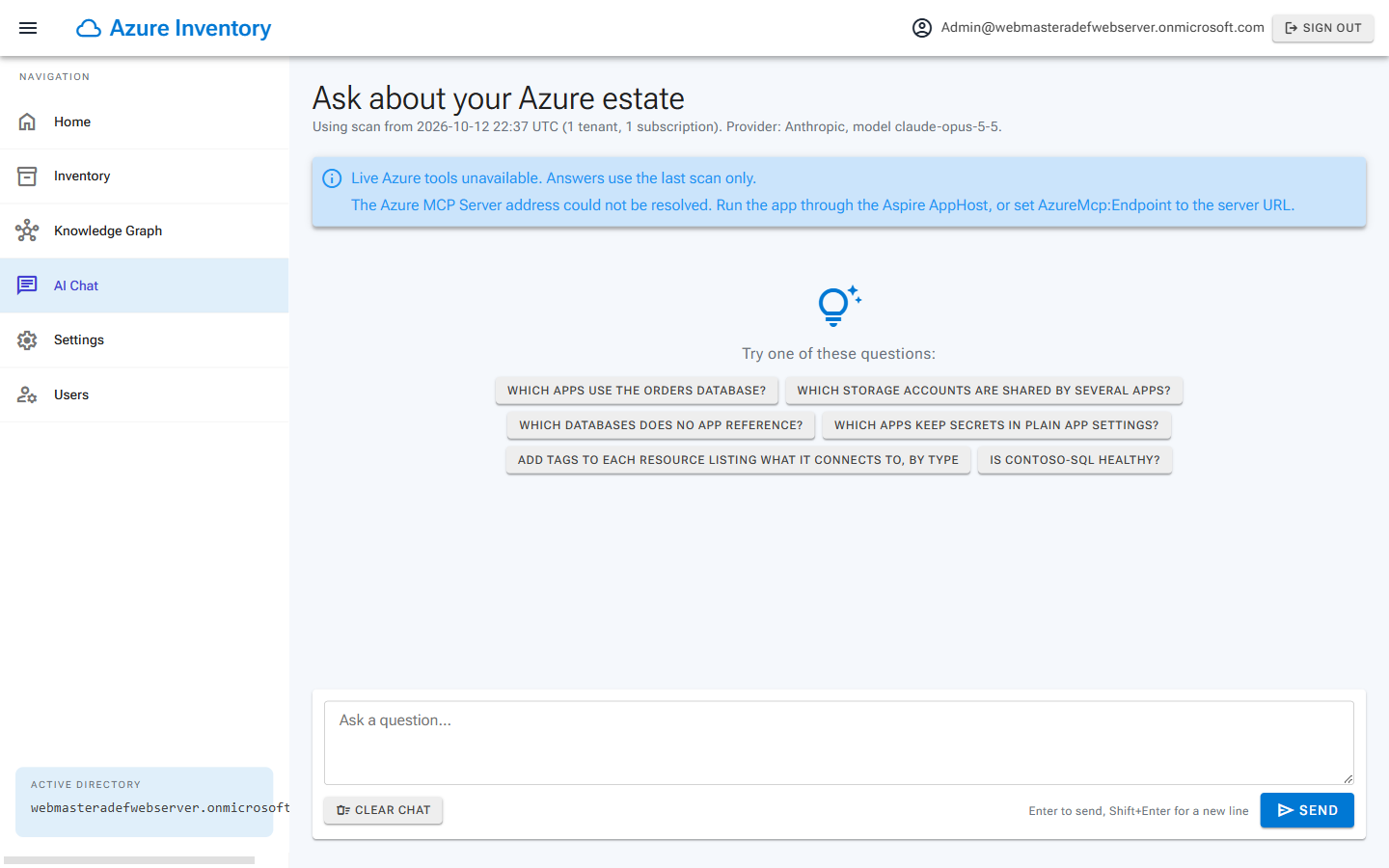
The AI Chat page answers questions about the graph you just built. When the conversation is empty, the ChatPanel.razor component shows a set of suggested questions as buttons, so a new user has somewhere to start:
public static readonly string[] Suggestions =["Which apps use the orders database?","Which storage accounts are shared by several apps?","Which databases does no app reference?","Which apps keep secrets in plain app settings?","Add tags to each resource listing what it connects to, by type","Is contoso-sql healthy?"];
As the model answers, the tool calls it makes are rendered as collapsible cards (ToolCallCard.razor), with a cloud_sync icon for live Azure MCP tools and a hub icon for the local graph tools, a spinner while the call is running, and a result badge when it finishes.
When the model mentions a resource, the answer contains a res: link. Those links are only made clickable for resources in the user's own scan, and the ID that comes back from the browser is validated again on the server before the resource dialog is opened:
[JSInvokable]public Task OpenResource(string id, string? text){// The ID comes from the browser; only IDs in the user's own scan are opened.if (string.IsNullOrWhiteSpace(id) || IsKnownResource?.Invoke(id) != true) return Task.CompletedTask;return InvokeAsync(() => Launcher.OpenAsync(id, string.IsNullOrWhiteSpace(text) ? null : text));}
The input box (MessageInput.razor) supports Enter to send, Shift+Enter for a new line, a Stop button while a response is streaming, and a Clear chat button.
Finally, note what the AI is not allowed to do: it can propose tag changes, but it cannot apply them. Proposals are rendered as a TagProposalCard in the message list, and nothing is written to Azure until the user reviews the diff and clicks Apply. The MCP server also runs with --read-only and a tool allowlist that is enforced on both the server and the client:
| Setting | Value |
|---|---|
AzureMcp:Scopes |
api://<azinventory-mcp-client-id>/Mcp.Tools.Read |
AzureMcp:AllowedTools |
Must match the --tool list in AzureMcpServer/Dockerfile |
Running The Solution
Set BlazorAzureInventorySolution.AppHost as the Startup Project and run it. The Aspire AppHost starts the Blazor application and the azure-mcp container, and asks for the mcpTenantId, mcpClientId, and (locally) mcpClientSecret parameters that the MCP container uses for its incoming authentication and its On-Behalf-Of calls. Keep those in appsettings.Local.json or in AppHost user secrets (Parameters:mcpClientSecret).
When deploying to Azure Container Apps (aspire deploy or azd up), the AppHost also asks for webClientId. No secrets are deployed: each app gets a user-assigned managed identity, so you add a federated identity credential for that identity to the matching app registration.
Links
- The code is available on GitHub:
ADefWebserver/Blazor-Azure-Inventory Video: Walk-Thru: A Blazor Azure Inventory, Knowledge Graph, and AI Chat Application