
12/7/2025 Admin
Create Your Own SMTP Server Using Aspire 13
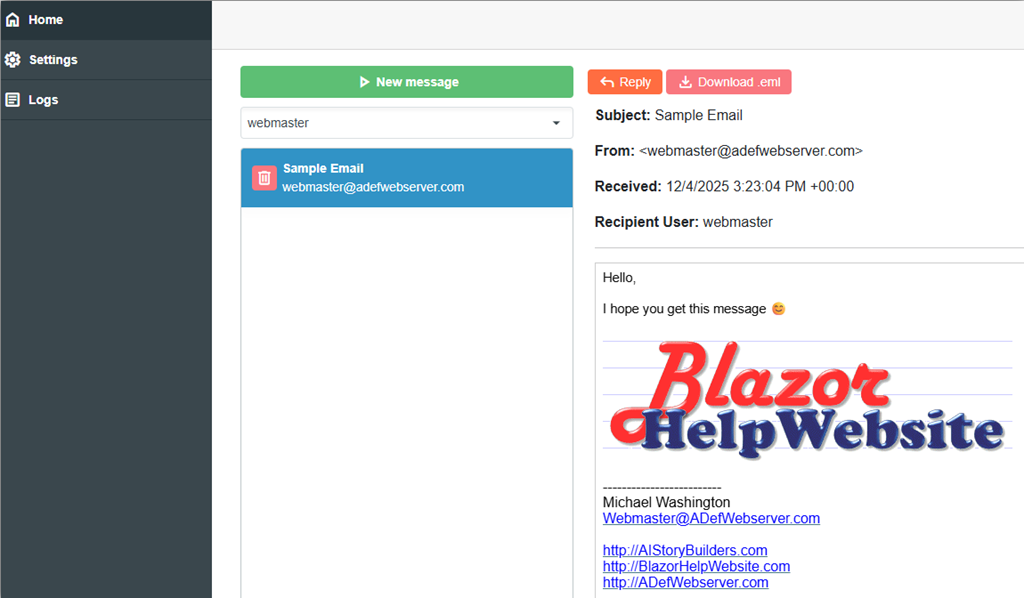
Building your own email server is a rite of passage for many developers. It’s also a fantastic way to learn exactly how internet email works.
In this post, we’re going to cover the code contained in my BlazorSMTPServer repository. We will walk through how email actually works, why sending it is so much harder than receiving it, and how to build a casual solution using Blazor and Azure.
Important Note: This project is for educational purposes and personal experimentation. This is not a production email solution. Managing a production email server requires 24/7 security monitoring, reputation management, and redundant infrastructure.
Also See: Deploy Your Own Unlimited Forwarding To SendGrid SMTP Server
How Email Works (The Big Picture)
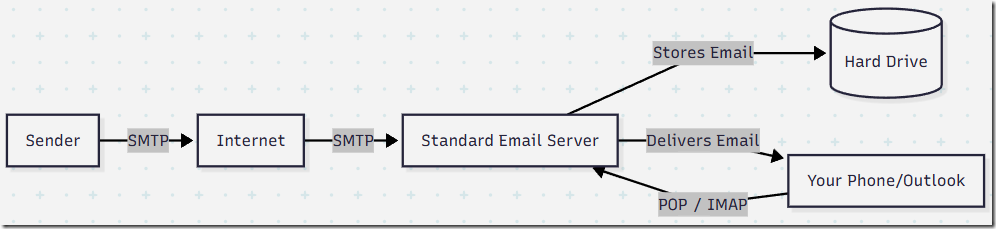
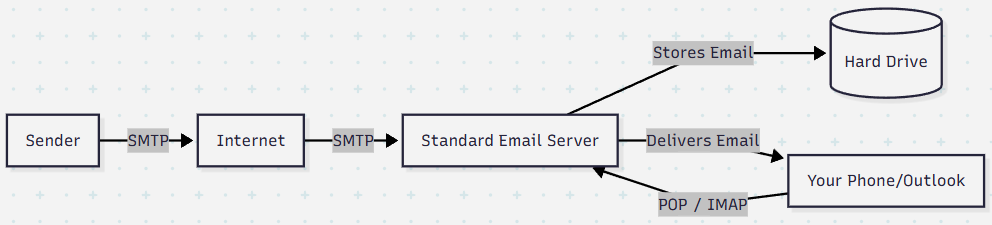
Traditionally, an email server does two jobs: it speaks SMTP (Simple Mail Transfer Protocol) to receive mail from the outside world on TCP port 25., and it also speaks POP or IMAP protocols to let your email client (like Outlook or your phone) fetch that mail.
Our Solution
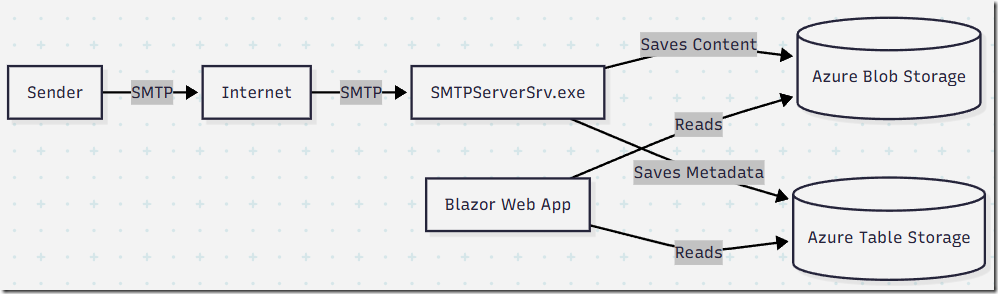
Our solution is different. We don't need POP or IMAP because we are building a web interface (Blazor) to read the emails directly. We also use blob storage so we don't have to worry about hard drives filling up. We use table storage for logs.
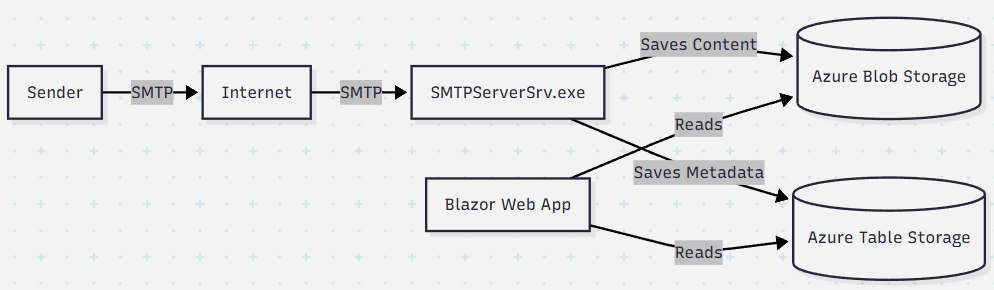
Receiving is Simple, Sending is Hard
Writing code to listen on port 25 and accept text is actually quite strait-forward. To do this we use: https://github.com/cosullivan/SmtpServer.
The hard part of email is trust and dealing with spam (unwanted emails). This requires adding a lot of additional components, mostly from: https://github.com/nager/Nager.EmailAuthentication.
This is the process this email server uses:
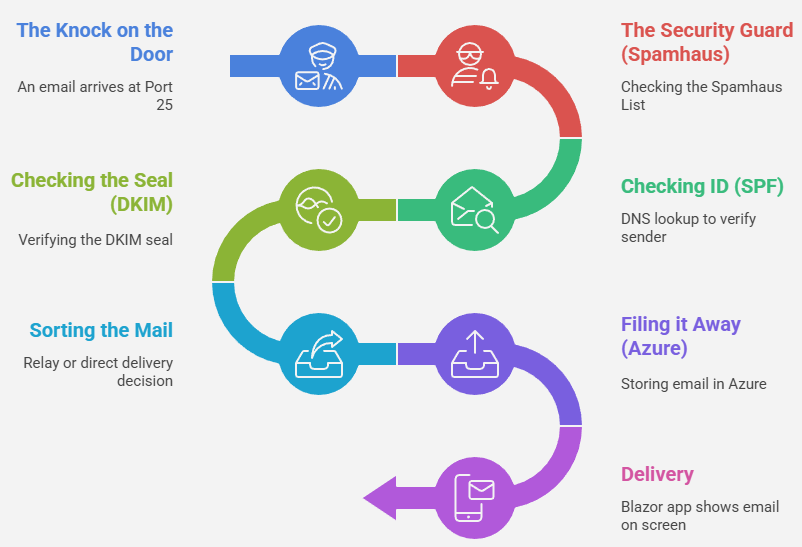
The Spam Problem
If you put a server on the internet today, spammers will find it within minutes.
-
What is it? Unsolicited bulk email.
-
How do we deal with it? We use "Blocklists." The gold standard is Spamhaus. They maintain a massive list of "bad actors." Our server checks every incoming connection against the Spamhaus database.
-
Tip: You can check your own IP reputation at https://check.spamhaus.org/.
-
Action: To use this feature in the code, you'll need a key. Log in, go to https://auth.spamhaus.org/account/, scroll to the bottom, and click "Create Key".
-
Preventing "Open Relay"
An Open Relay is an email server that lets anyone send email to anyone.
-
The Danger: If you accidentally configure your server as an Open Relay, spammers will hijack it to send millions of emails pretending to be you. Your server will get blacklisted immediately.
-
The Fix: Our server is configured to only accept email destined for our specific domains. It rejects everything else unless the user is authenticated.
The "Alphabet Soup" of Email Security (SPF, DKIM, DMARC)
To send email that actually arrives in an inbox (and not the Junk folder), you need these three DNS records:
-
SPF (Sender Policy Framework):
-
The ID Card. It’s a public list of IP addresses that are allowed to send email for your domain. If mail comes from an IP not on the list, it’s a fake.
-
-
DKIM (DomainKeys Identified Mail):
-
The Wax Seal. The server adds a digital cryptographic signature to every email headers. This proves the email hasn't been tampered with during transit.
-
-
DMARC (Domain-based Message Authentication, Reporting, and Conformance):
-
The Instructions. This tells the receiver what to do if SPF or DKIM fails. It effectively says: "If this email fails the ID check or the Wax Seal is broken, please delete it immediately and send me a report."
-
Why You Must Accept "Abuse" and "Postmaster"
RFC standards require every email server to accept mail for abuse@yourdomain.com and postmaster@yourdomain.com.
-
Postmaster: Used for technical errors (like "Mailbox Full").
-
Abuse: Used by other admins to report spam coming from your network.
-
Warning: If you block these addresses, legitimate providers like Google and Outlook may block your server entirely because you look like a "bad neighbor."
The Solution in Detail
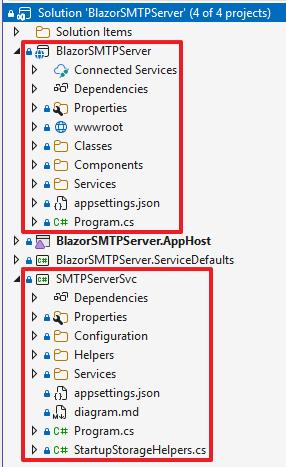
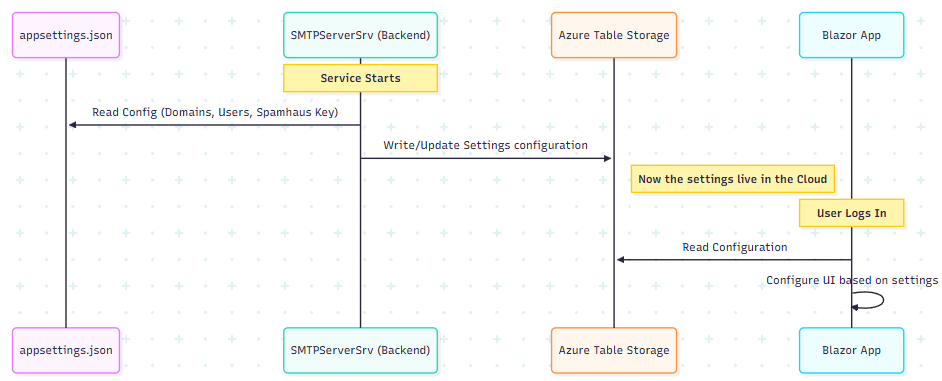
The project is split into two main parts that communicate via Azure Storage. This allows the backend SMTP service to run independently (even in a container) while the Blazor front-end can run anywhere else.
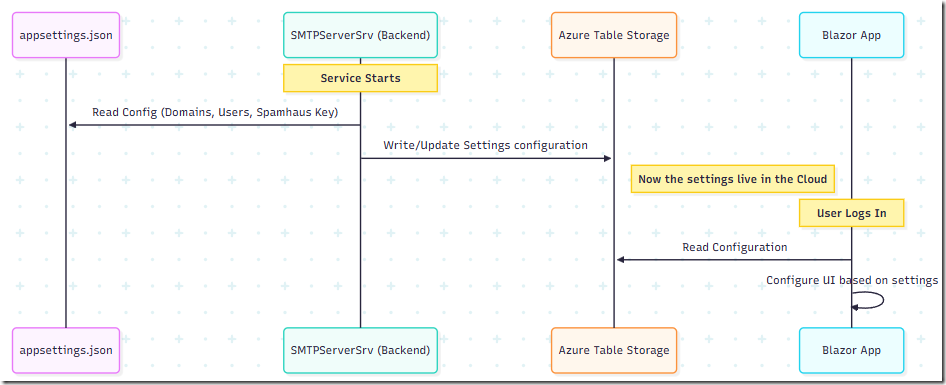
Configuration Flow
The SMTPServerSrv project acts as the brain. It reads your local configuration and pushes it to the Azure Storage tables so the Blazor app knows what's going on.
Run Locally
Want to try this yourself?
Download: Clone the repository from GitHub...
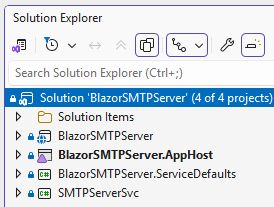
…and open in Visual Studio 2026 or Visual Studio Code.
Note: You will also need to have Docker Desktop or Podman installed.
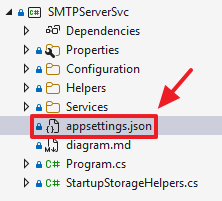
Open the appsettings.json file in the SMTPServerSvc and configure your desired settings.
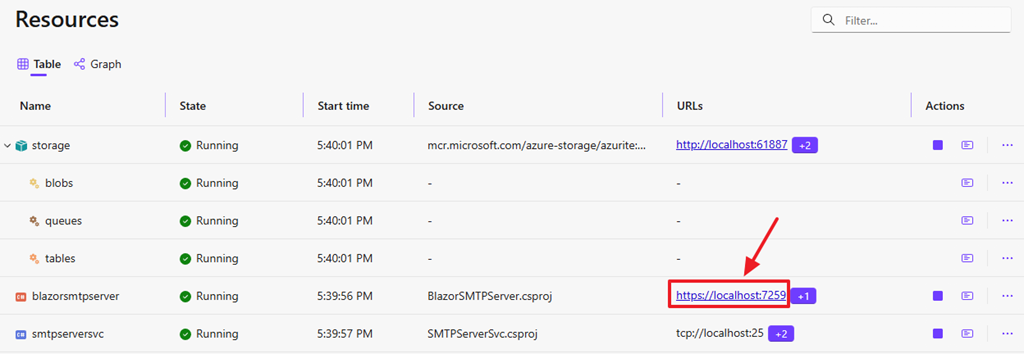
Run the project, it will open up the dashboard in your web browser.
Click the link to navigate to the Blazor app.
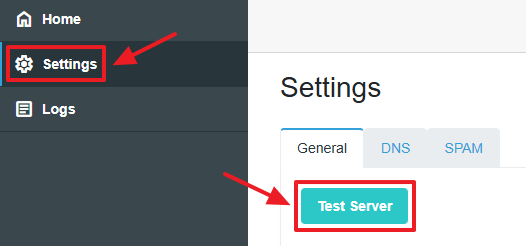
Navigate to the Settings page and click the Test Server button.
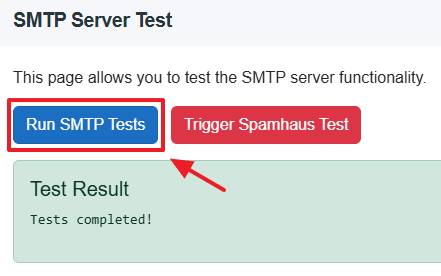
Click the Run SMTP Tests button to run the test code that sends sample emails from the Blazor app to the SMTP server.
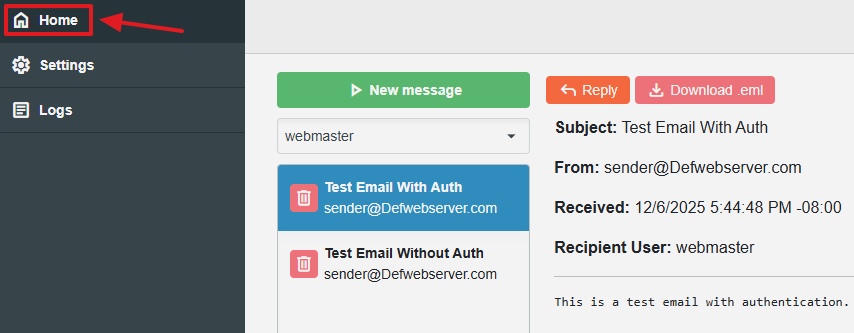
Navigate to the Home page and view the test emails.
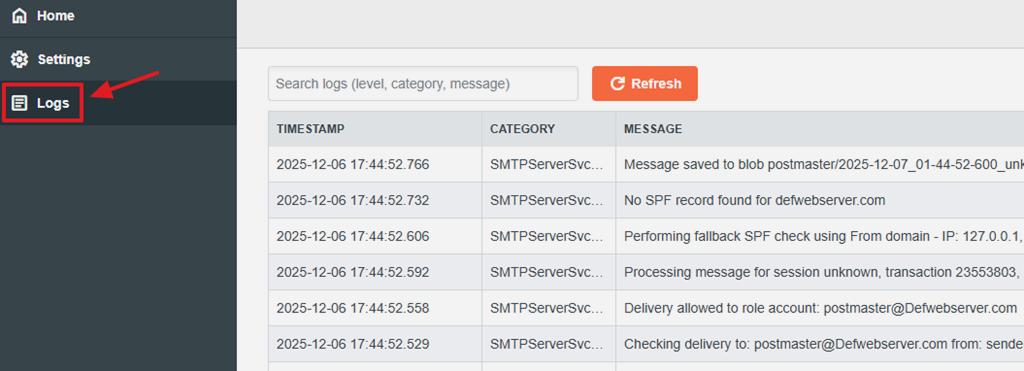
You can also navigate to the Logs page to see a log of the traffic.
Deploy Application to An Azure Virtual
To actually send email you will need to deploy this to a location that allows you to point DNS records to its location and allows you to send and receive email on TCP port 25. Many home internet providers block access to sending on port 25. Microsoft Azure also blocks sending on port 25. However, Microsoft Azure allows you to receive on port 25 , when using a Virtual Server, so we will detail that process.
We will deploy the application and allow it to receive email.
Note: If you can find a server that allows you to send on port 25, the email server will send email.
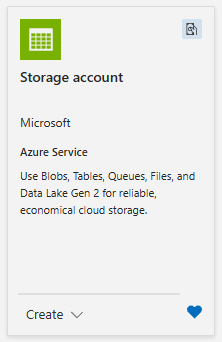
You will need a Storage account.
Go to: https://portal.azure.com/ and create one.

Copy the connection string.
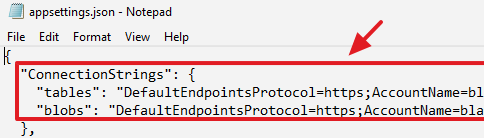
You will need to enter it into the appsettings.json files in the BlazorSMTPServer and SMTPServerSvc projects.
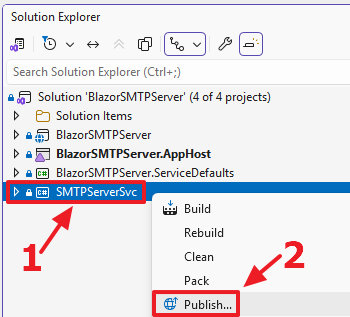
In Visual Studio, in the Solution Explorer, right-click on the SMTPServerSrv project and select Publish.
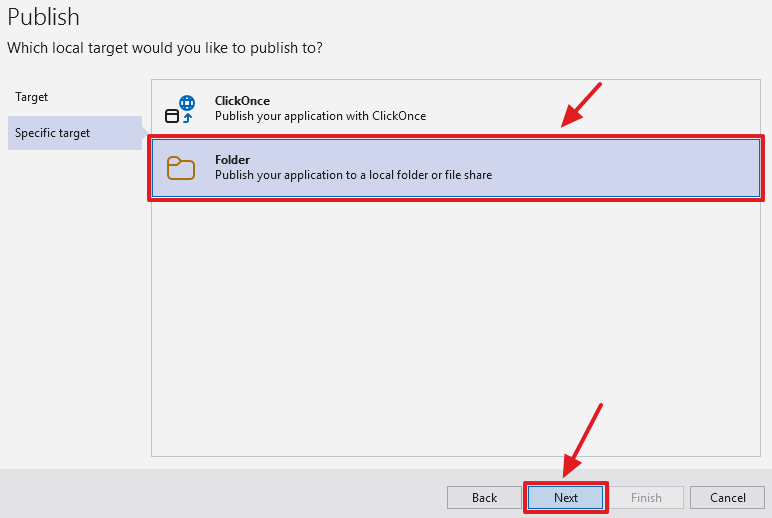
Select Folder then Next.
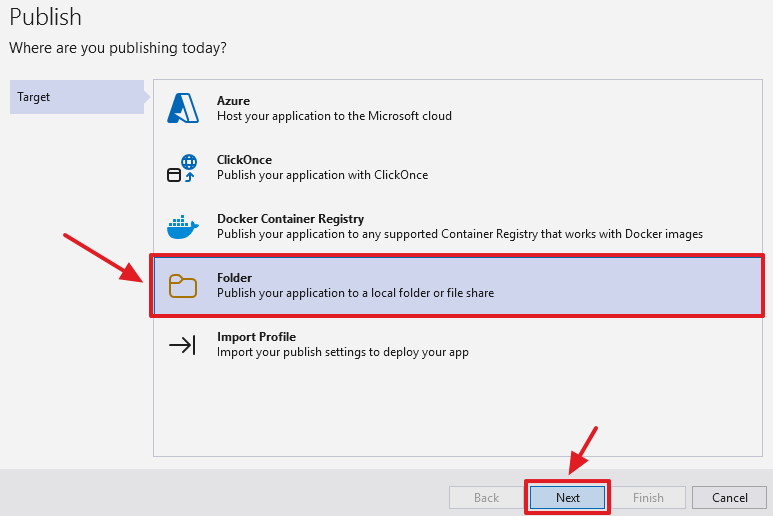
Select Folder then Next.
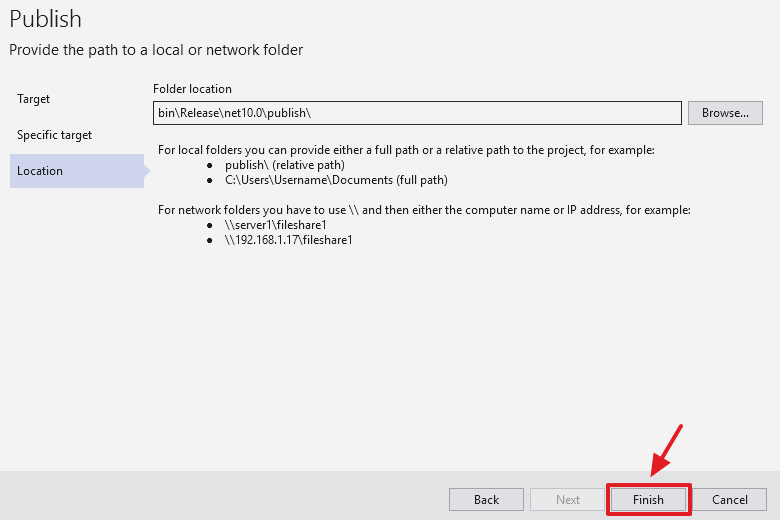
Select Finish.
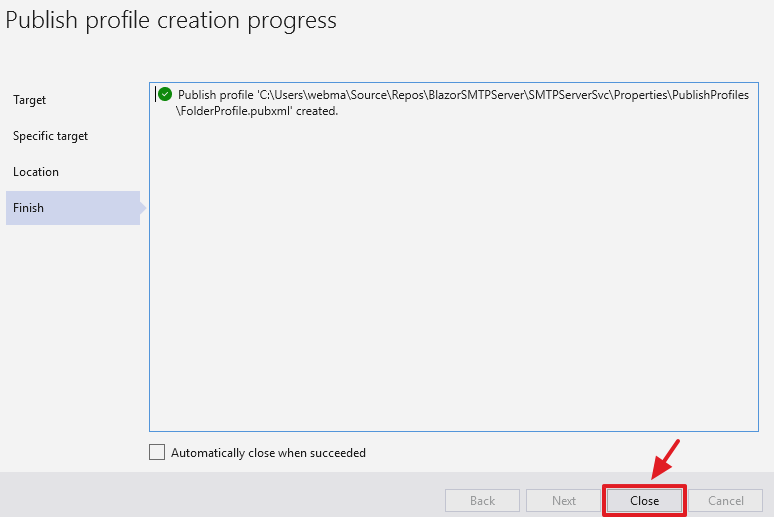
Click Close.
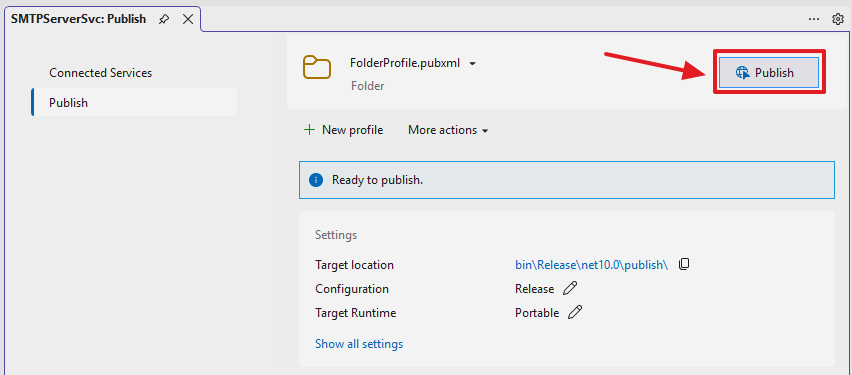
Click Publish.
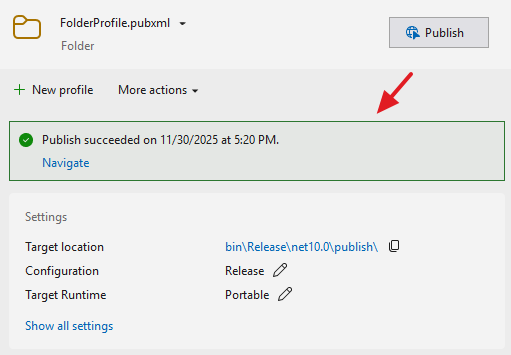
The code will publish to a folder.
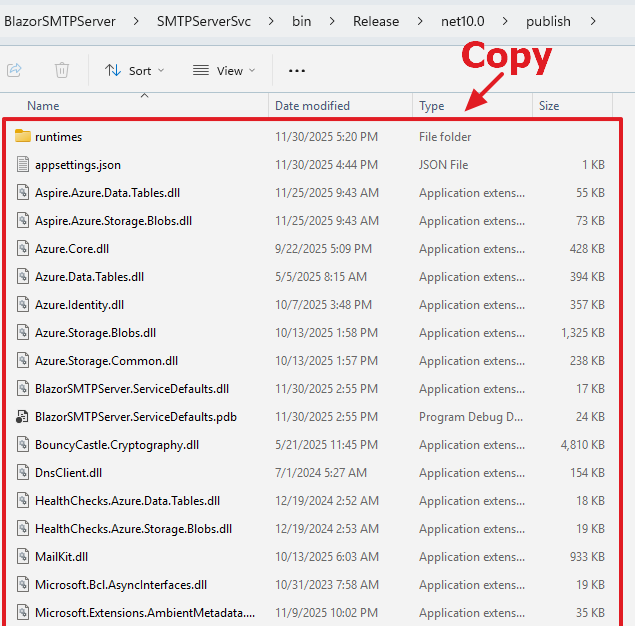
Navigate to that folder and copy the contents to a folder on your Azure Virtual Server.
Note: You must have .Net Core 10 installed on the server.
Update the contents of the appsettings.json file to point to a real domain name.
Also carefully set the username and password to the server.

On the Azure Virtual open the Windows Defender Firewall.
Select Advanced Settings.
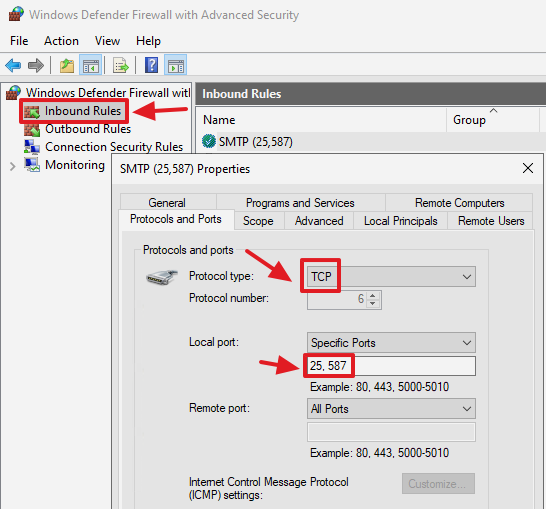
Create an Inbound Rule to allow access on TCP ports 25 and 587.
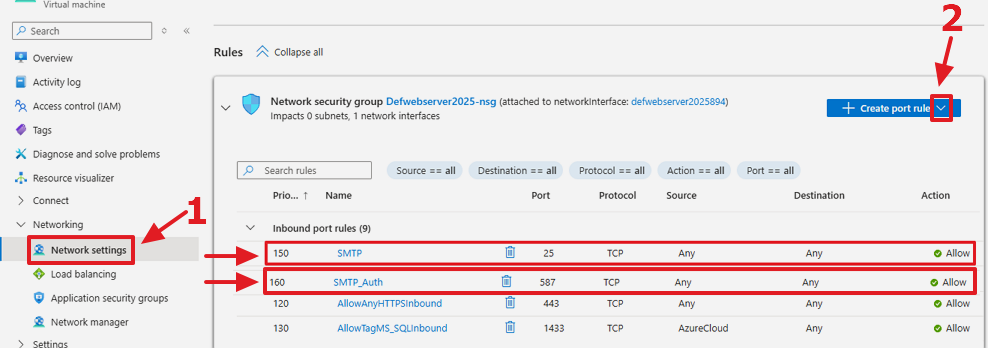
In https://portal.azure.com/ in the Network Settings for the Azure Virtual, create Inbound port rules for ports 25 and 587.
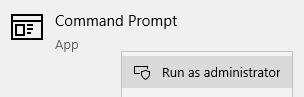
On the Azure Virtual, open the Command Prompt in Administrator mode.

Enter a line like the following, pointing to the location of the SMTPServerSvc.exe file:
sc create SMTPServerSvc binPath= "C:\!SMTPServerSrv\SMTPServerSvc.exe" start= auto
This will register the application as a Windows Service on the Azure Virtual.
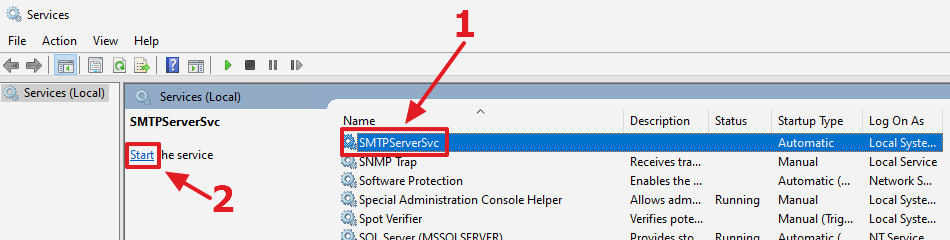
Start the service.
Deploy The Blazor App
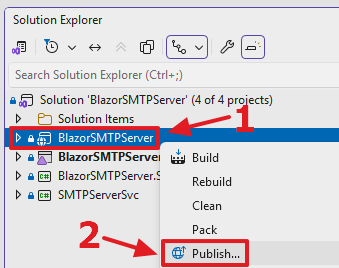
in Visual Studio, in the Solution Explorer, right-click on the BlazorSMTPServer project and select Publish…
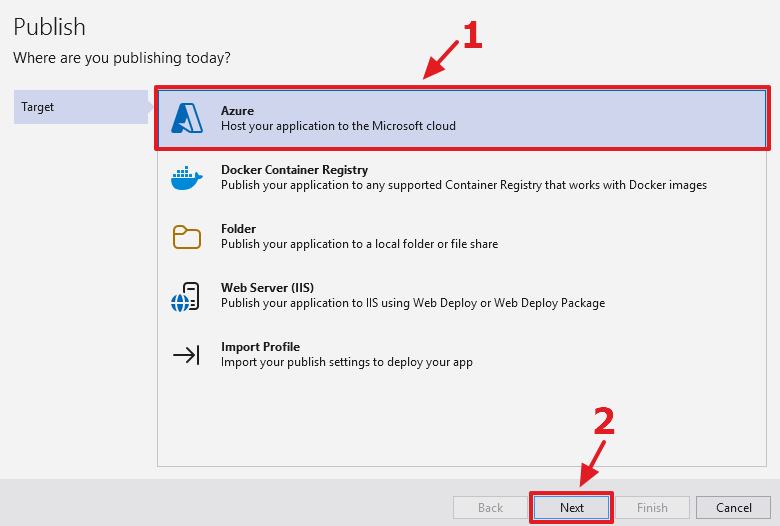
Select Azure.
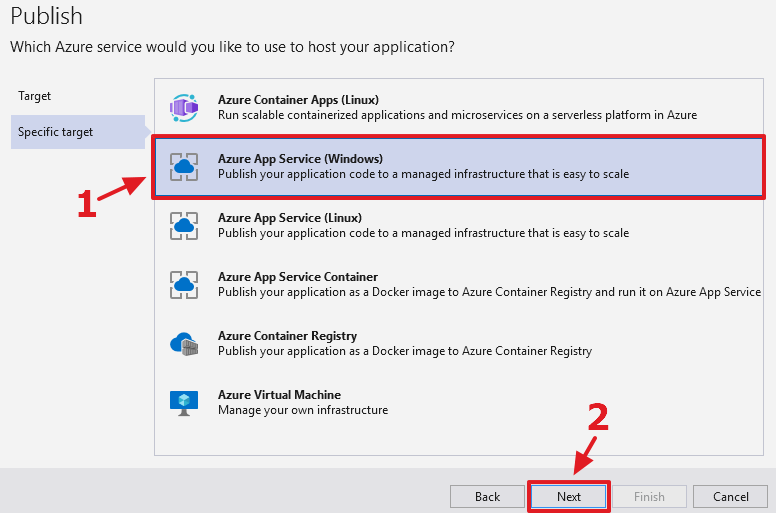
Select Azure App Service.
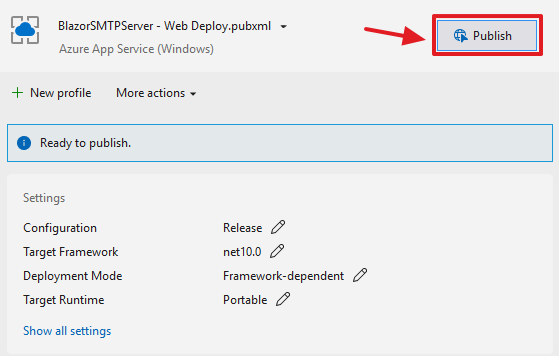
Click Publish.
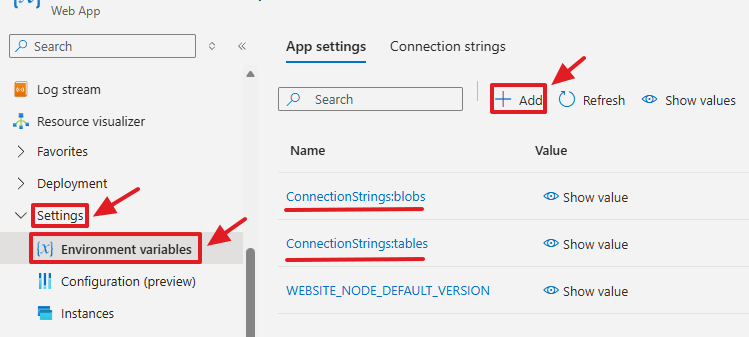
In the Portal.Azure.com portal, go to Environment variables and add the following keys and for the values, use the same Azure Storage values you used in the SMTPServerSrv project:
- ConnectionStrings:tables
- ConnectionStrings:blobs

Also, in Configuration, ensure that Web sockets is enabled.
Stop the website and restart it.
VERY IMPORTANT!
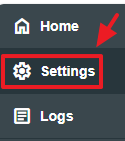
IMMDIATELY, open the website in your web browser, and navigate to Settings…
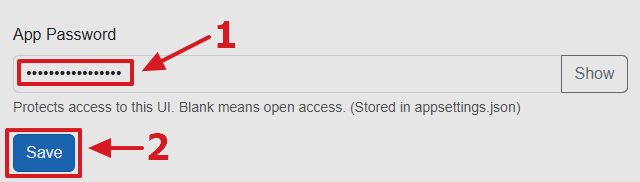
Enter a password and click the Save button.
Refresh the web browser and confirm it asks for this password to log in.
Note: This saves the password to appsettings.json so you will need to reset it each time you publish the website to your web server.
DNS Settings
To receive (and send) email you must have a domain name. You can get a domain name from a Domain Registrar such as:
When you obtain your domain name, it will have a DNS record hosted by your Domain Registrar.
To configure your SMTP server to receive emails you need to update the DNS settings for your domain name with your Domain Registrar.
You need to configure at least two settings:
- An A record pointing the domain name to the IP address your SMTP server is running on
- An MX record pointing to the domain name your SMTP server is running on
Why These Records Are Needed
A Record (Address Record)
- Maps a domain name (e.g., mail.example.com) to the IP address of your SMTP server.
- Without this, the MX record would point to a hostname that cannot be resolved to an IP, so mail delivery would fail.
MX Record (Mail Exchange Record)
- Tells other mail servers which host is responsible for receiving mail for your domain.
- Example:
example.com. IN MX 10 mail.example.com.
The MX record must point to a hostname (not directly to an IP). That hostname must have a valid A record.
Additional Considerations
Multiple MX Records
- You can configure multiple MX records with different priorities (lower numbers = higher priority). This allows for backup mail servers if the primary one is unavailable.
No CNAME for Mail Host
- Avoid using a CNAME record for the mail hostname. DNS rules state MX records should point to A records, not CNAMEs, and some mail systems will reject delivery if a CNAME is used.
Propagation Time
- DNS changes (A and MX records) usually take up to 30 minutes to propagate, but sometimes longer depending on TTL values.
Summary
To receive emails on your SMTP server:
- Create an A record for your mail server’s hostname → IP address.
- Create an MX record for your domain → mail server hostname.
- This ensures external mail servers can resolve your domain and deliver mail correctly.
Set-Up Your DNS Records
An example of setting up DNS records can be found here:
Step 1: Create an A Record (if one does not already exist)
Purpose: Maps a hostname (like mail.example.com) to your server’s IP.
-
Example Entry:
mail.example.com. IN A 203.0.113.25
(Here,203.0.113.25is the public IP address of your SMTP server.)
Step 2: Create an MX Record
Purpose: Tells other mail servers where to deliver mail for example.com.
-
Example Entry:
example.com. IN MX 10 mail.example.com.
-
10is the priority (lower = higher priority). -
mail.example.commust resolve to your server’s IP via the A record above.
-
Step 3: Validate
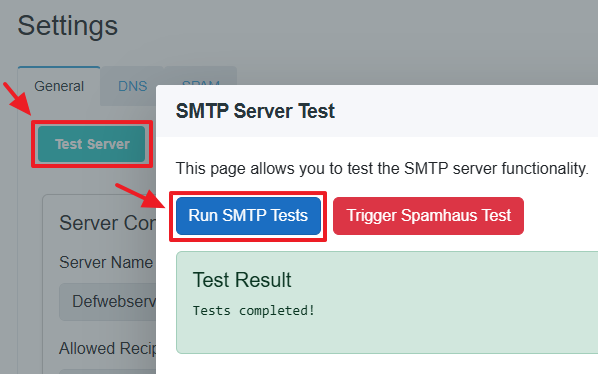
In the Blazor app, use the Test Server / Run SMTP Tests buttons to test the server.
Links