
12/25/2025 Admin
Deploy Your Own Unlimited Forwarding To SendGrid SMTP Server
Forward Unlimited Domains
Building your own email infrastructure can feel like a dark art, but sometimes you just need a simple, robust way to forward emails from multiple domains without paying per-user fees.
In this post, we’re going to look at BlazorSMTPForwarder, an application that allows you to accept incoming emails on an unlimited number of domains and forward them to specific addresses using SendGrid. It leverages a Blazor front-end for easy management and a backend Windows Service to handle the "heavy lifting" of SMTP traffic.
Note: Also see: https://github.com/ADefWebserver/BlazorSMTPServer
Features
Web-Based Administration
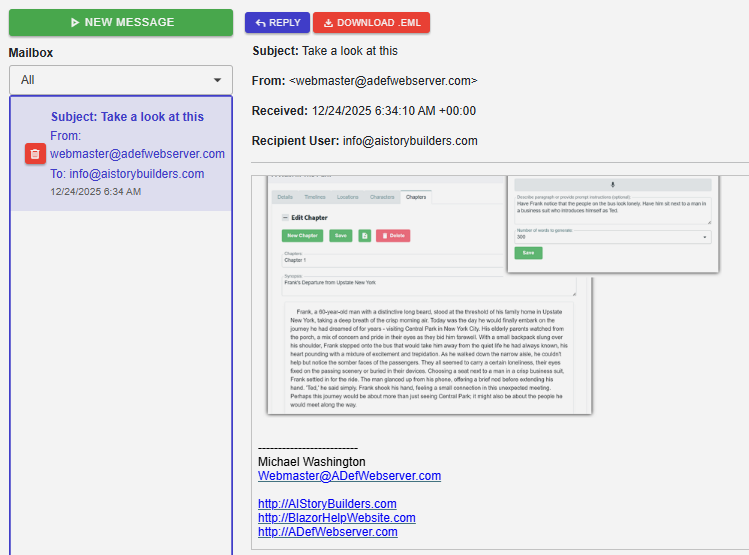
Inbox Viewer: View received and archived emails directly in the browser.
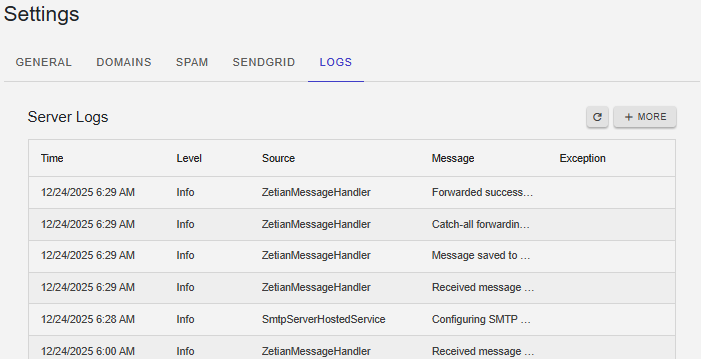
Log Viewer: Built-in interface to view server logs for monitoring and troubleshooting.
Unlimited Domain Forwarding
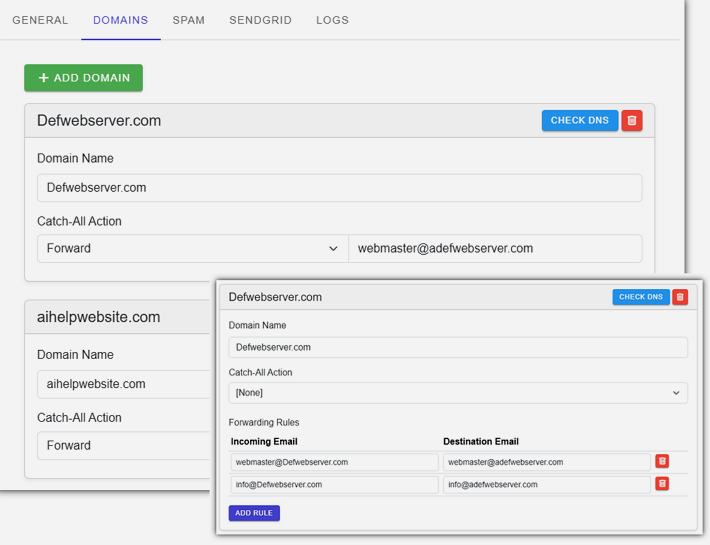
Configure and manage email forwarding for an unlimited number of domains from a single instance.
- Direct Forwarding: Map specific incoming email addresses to destination addresses.
- Catch-All Support: Configure catch-all forwarding to handle any email sent to a domain that doesn't match a specific rule.
SendGrid Integration
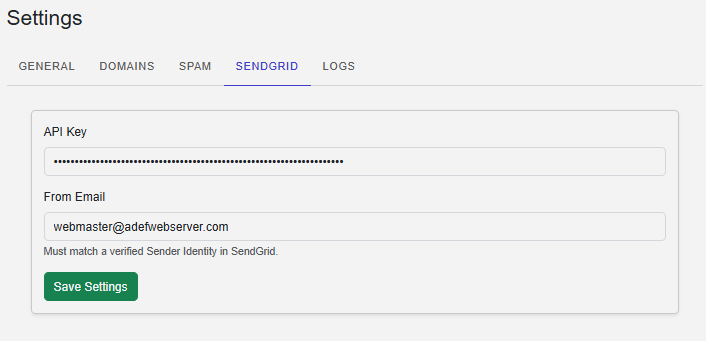
Leverages the SendGrid API for reliable, high-deliverability email forwarding without managing complex SMTP relay infrastructure.
Robust Anti-Spam Protection
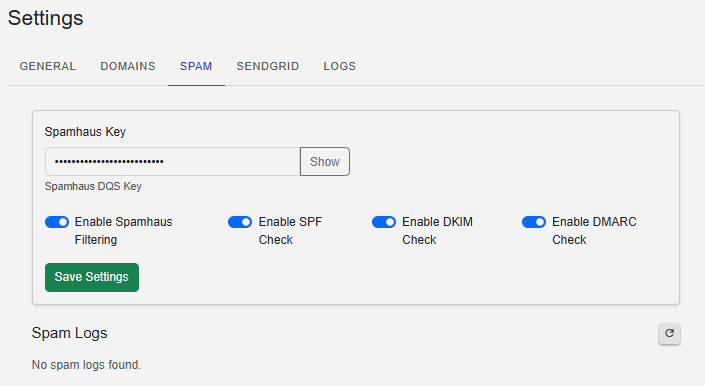
- Integrated SPF, DKIM, and DMARC verification.
- Spamhaus RBL (Real-time Blackhole List) integration to block known spam sources.
Secure Access
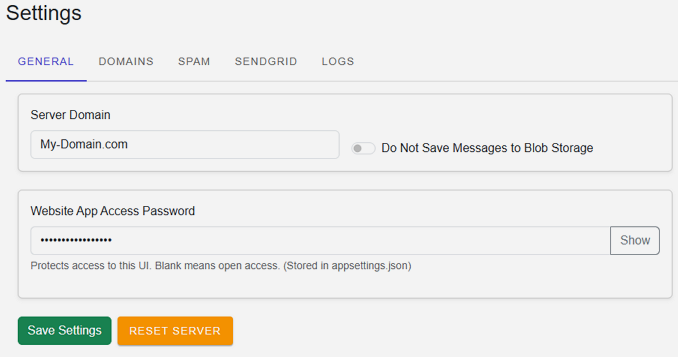
The web administration interface is protected by a configurable application password to prevent unauthorized access.
Quick-Start
If you want to get your hands dirty immediately, you can run the application locally to see how it works.
Download and Run
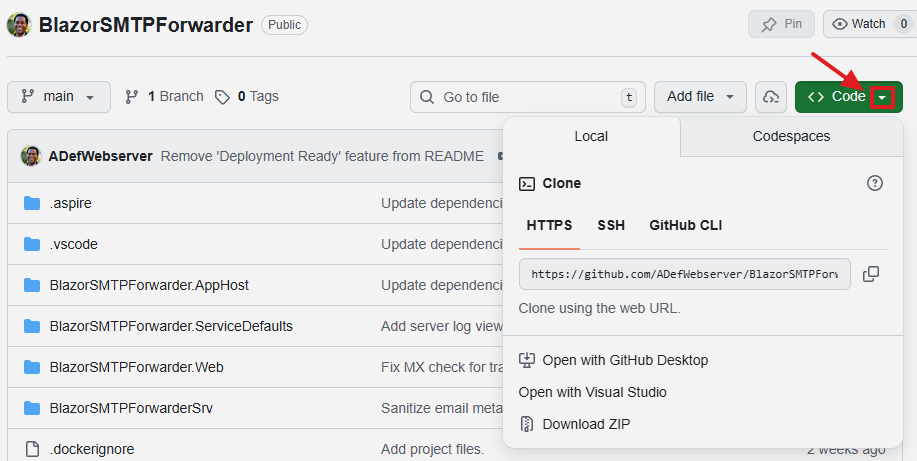
First, clone the repository from GitHub: https://github.com/ADefWebserver/BlazorSMTPForwarder
Requirements:
-
Visual Studio 2022 (or VS Code)
-
Docker Desktop or Podman (required for the Aspire orchestration)
-
.NET 8 or higher
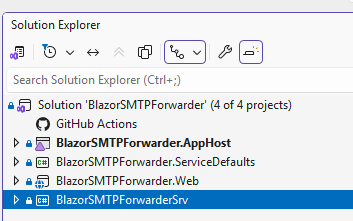
Open the solution (BlazorSMTPForwarder.slnx) and set the BlazorSMTPForwarder.AppHost project as your startup project.
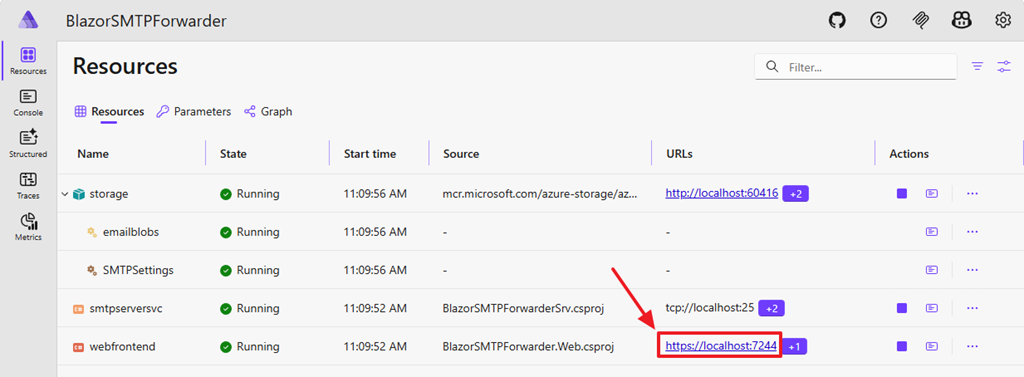
Run the application. The .NET Aspire dashboard will launch, spinning up the necessary resources, including the Blazor front-end and the SMTP backend service.
Once the dashboard is running, click the endpoint link for the webfrontend project to open the UI.
Deploy Application to An Azure Virtual
To actually send email you will need to deploy this to a location that allows you to point DNS records to its location and allows you to receive email on TCP port 25. Microsoft Azure allows you to receive on port 25 , when using a Virtual Server, so we will detail that process.
We will deploy the application and allow it to receive email.
Note: If you can find a server that allows you to send on port 25, the email server will send email.
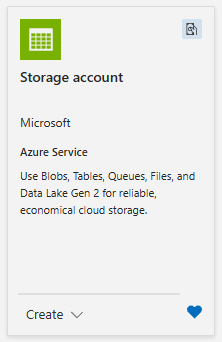
You will need a Storage account.
Go to: https://portal.azure.com/ and create one.

Copy the connection string.
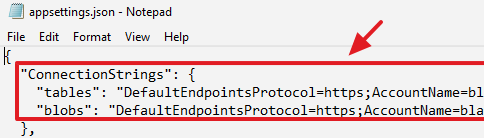
You will need to enter it into the appsettings.json files in the BlazorSMTPServer and SMTPServerSvc projects.
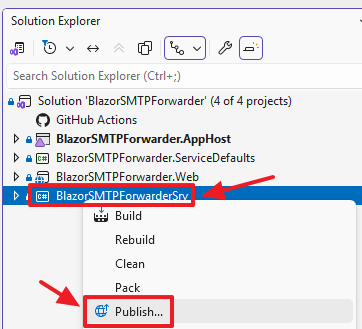
In Visual Studio, in the Solution Explorer, right-click on the BlazorSMTPForwardSrv project and select Publish.
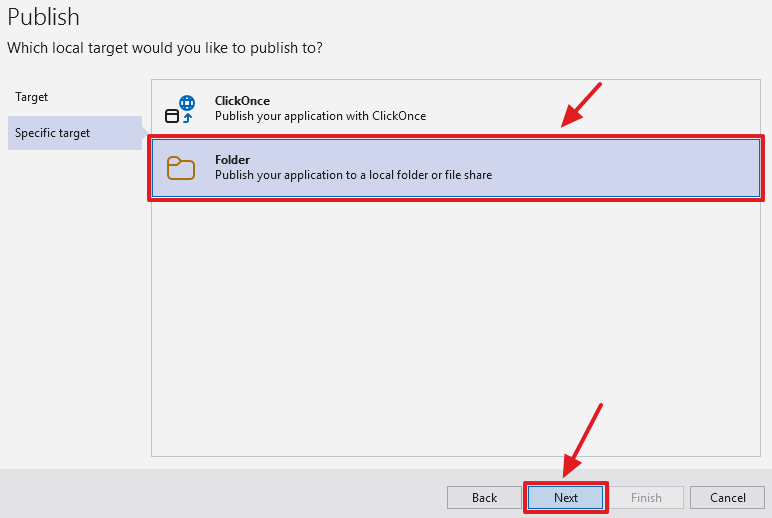
Select Folder then Next.
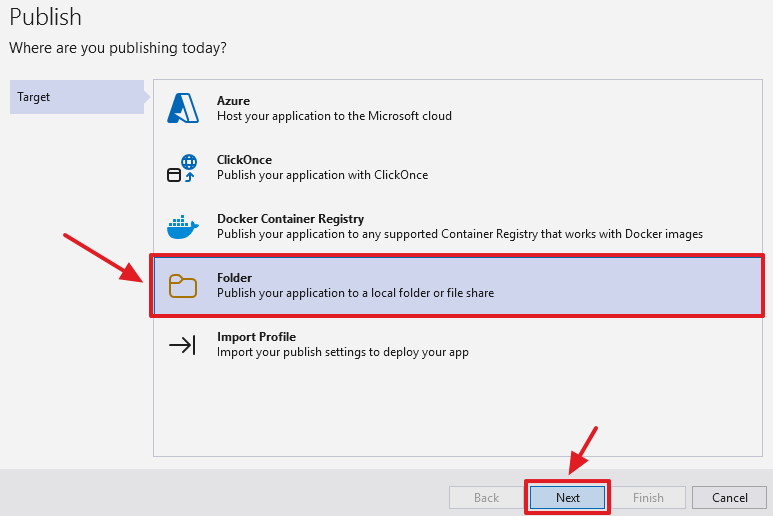
Select Folder then Next.
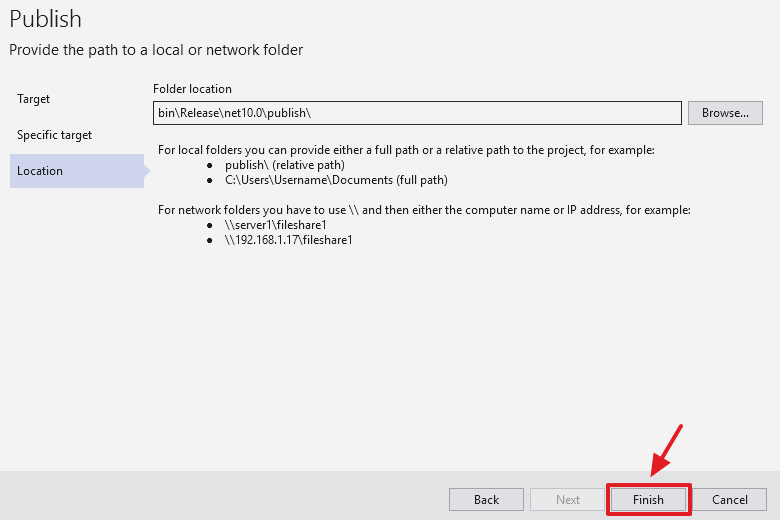
Select Finish.
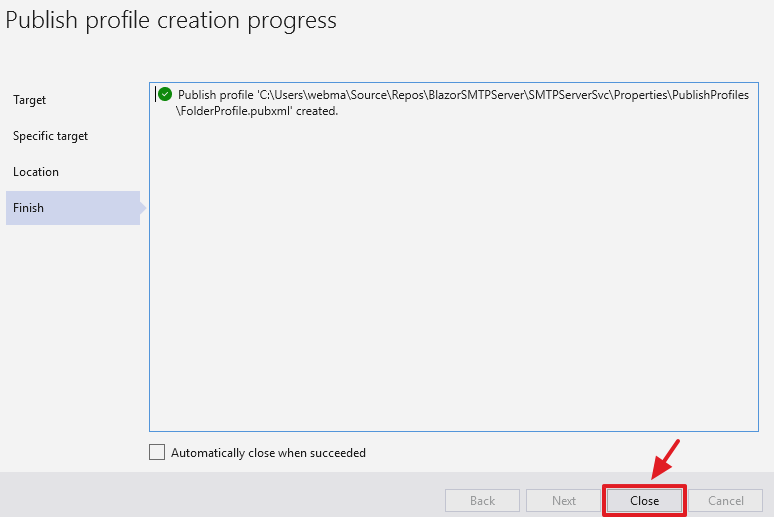
Click Close.
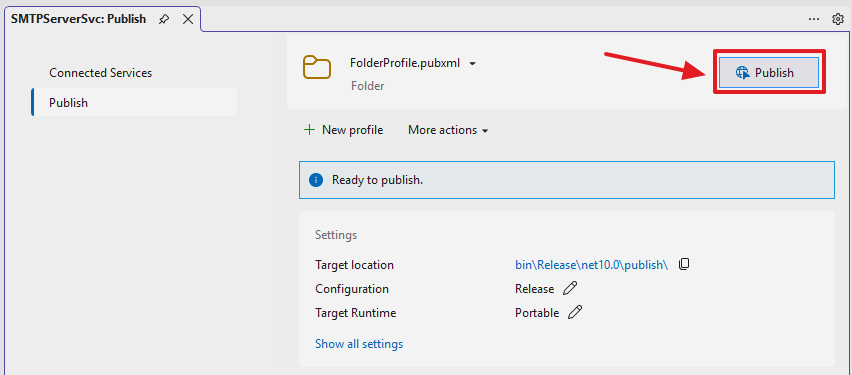
Click Publish.
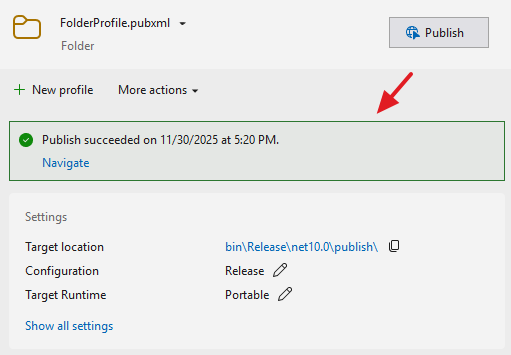
The code will publish to a folder.
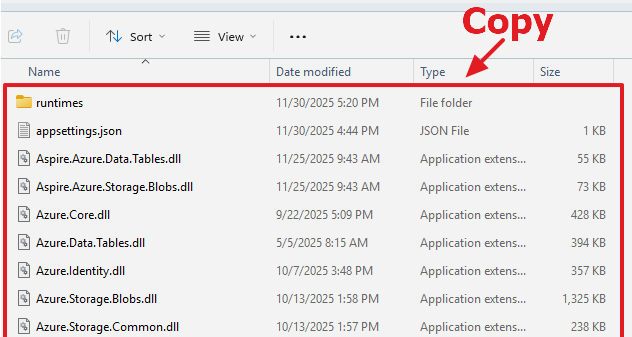
Navigate to that folder and copy the contents to a folder on your Azure Virtual Server.
Note: You must have .Net Core 10 installed on the server.
Update the contents of the appsettings.json file to point to a real domain name.
Also carefully set the username and password to the server.

On the Azure Virtual open the Windows Defender Firewall.
Select Advanced Settings.
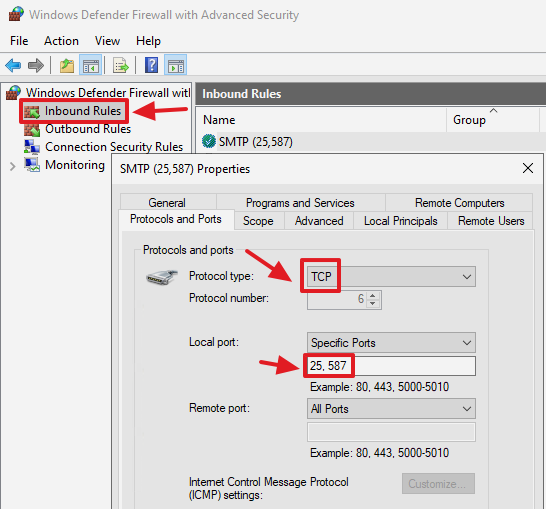
Create an Inbound Rule to allow access on TCP ports 25 and 587.
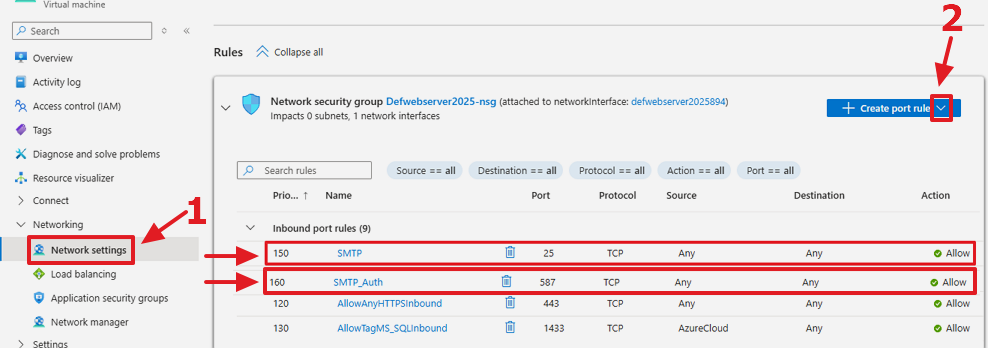
In https://portal.azure.com/ in the Network Settings for the Azure Virtual, create Inbound port rules for ports 25 and 587.
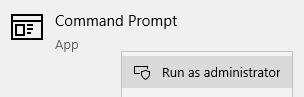
On the Azure Virtual, open the Command Prompt in Administrator mode.

Enter a line like the following, pointing to the location of the BlazorSMTPForwardSrv .exe file:
sc create BlazorSMTPForwardSrv binPath= "C:\!BlazorSMTPForwardSrv\BlazorSMTPForwardSrv .exe" start= auto
This will register the application as a Windows Service on the Azure Virtual.
Open Services and start the service.
Deploy The Blazor App
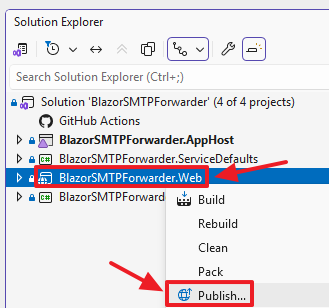
in Visual Studio, in the Solution Explorer, right-click on the BlazorSMTPForwarder project and select Publish…
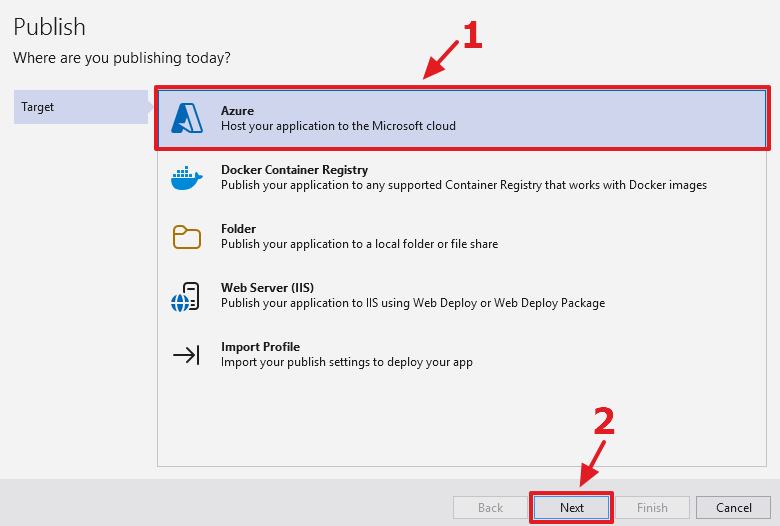
Select Azure.
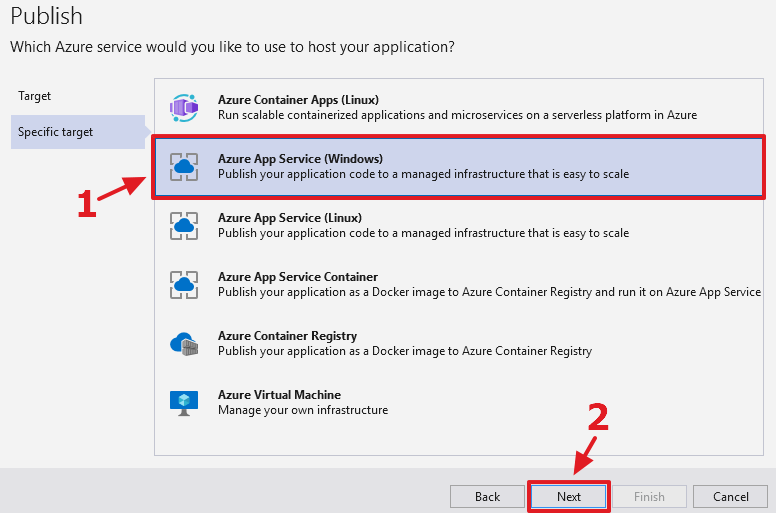
Select Azure App Service.
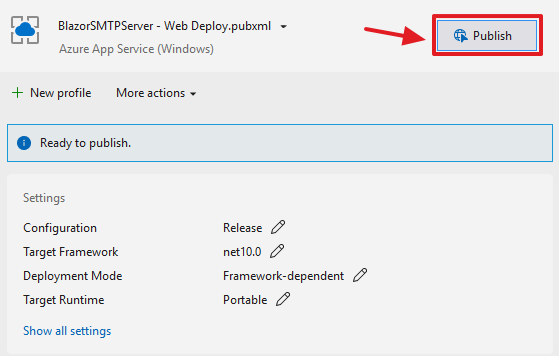
Click Publish.
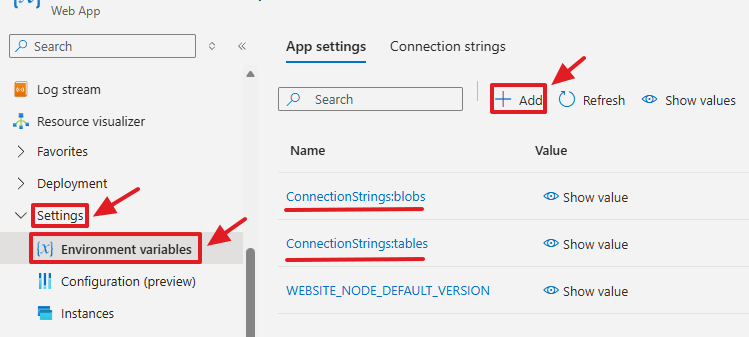
In the Portal.Azure.com portal, go to Environment variables and add the following keys and for the values, use the same Azure Storage values you used in the SMTPServerSrv project:
- ConnectionStrings:tables
- ConnectionStrings:blobs

Also, in Configuration, ensure that Web sockets is enabled.
Stop the website and restart it.
VERY IMPORTANT!
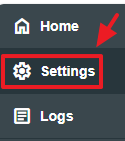
IMMDIATELY, open the website in your web browser, and navigate to Settings…
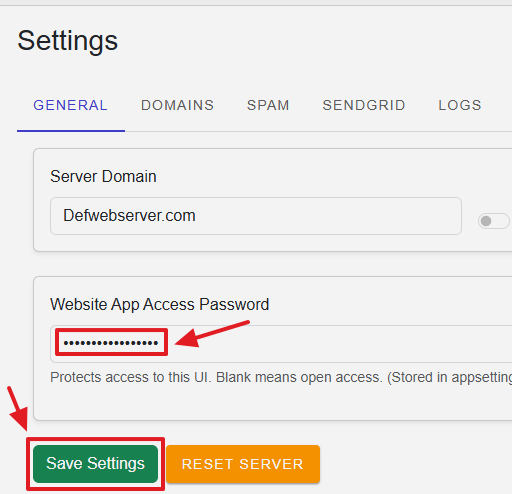
Enter a password and click the Save button.
Refresh the web browser and confirm it asks for this password to log in.
Note: This saves the password to appsettings.json so you will need to reset it each time you publish the website to your web server.
DNS Settings
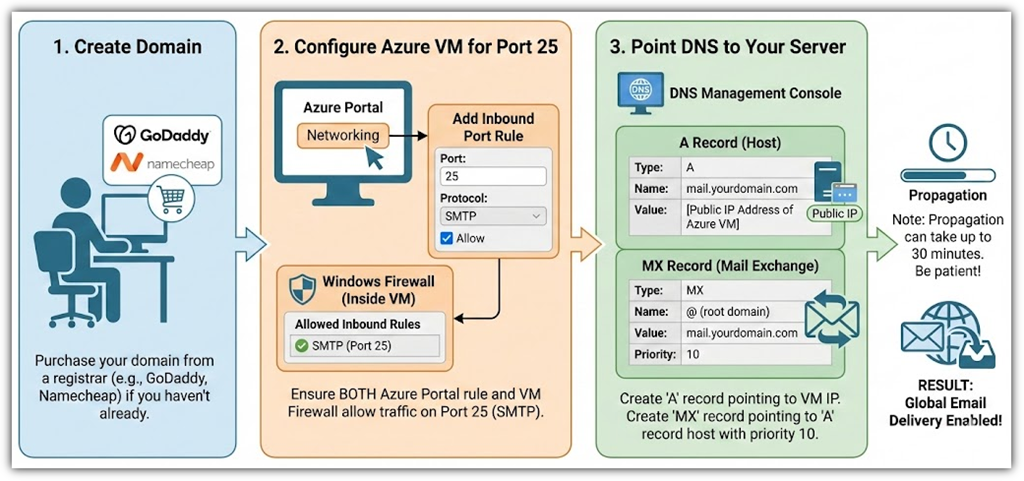
To receive (and send) email you must have a domain name. You can get a domain name from a Domain Registrar such as:
When you obtain your domain name, it will have a DNS record hosted by your Domain Registrar.
To configure your SMTP server to receive emails you need to update the DNS settings for your domain name with your Domain Registrar.
You need to configure at least two settings:
- An A record pointing the domain name to the IP address your SMTP server is running on
- An MX record pointing to the domain name your SMTP server is running on
Why These Records Are Needed
A Record (Address Record)
- Maps a domain name (e.g., mail.example.com) to the IP address of your SMTP server.
- Without this, the MX record would point to a hostname that cannot be resolved to an IP, so mail delivery would fail.
MX Record (Mail Exchange Record)
- Tells other mail servers which host is responsible for receiving mail for your domain.
- Example:
example.com. IN MX 10 mail.example.com.
The MX record must point to a hostname (not directly to an IP). That hostname must have a valid A record.
Additional Considerations
Multiple MX Records
- You can configure multiple MX records with different priorities (lower numbers = higher priority). This allows for backup mail servers if the primary one is unavailable.
No CNAME for Mail Host
- Avoid using a CNAME record for the mail hostname. DNS rules state MX records should point to A records, not CNAMEs, and some mail systems will reject delivery if a CNAME is used.
Propagation Time
- DNS changes (A and MX records) usually take up to 30 minutes to propagate, but sometimes longer depending on TTL values.
Summary
To receive emails on your SMTP server:
- Create an A record for your mail server’s hostname → IP address.
- Create an MX record for your domain → mail server hostname.
- This ensures external mail servers can resolve your domain and deliver mail correctly.
Set-Up Your DNS Records
An example of setting up DNS records can be found here:
Step 1: Create an A Record (if one does not already exist)
Purpose: Maps a hostname (like mail.example.com) to your server’s IP.
-
Example Entry:
mail.example.com. IN A 203.0.113.25
(Here,203.0.113.25is the public IP address of your SMTP server.)
Step 2: Create an MX Record
Purpose: Tells other mail servers where to deliver mail for example.com.
-
Example Entry:
example.com. IN MX 10 mail.example.com.
-
10is the priority (lower = higher priority). -
mail.example.commust resolve to your server’s IP via the A record above.
-
Blazor App Settings - Domain(s) and Forwarding
Once your infrastructure is live, you configure everything else through the Blazor web interface.
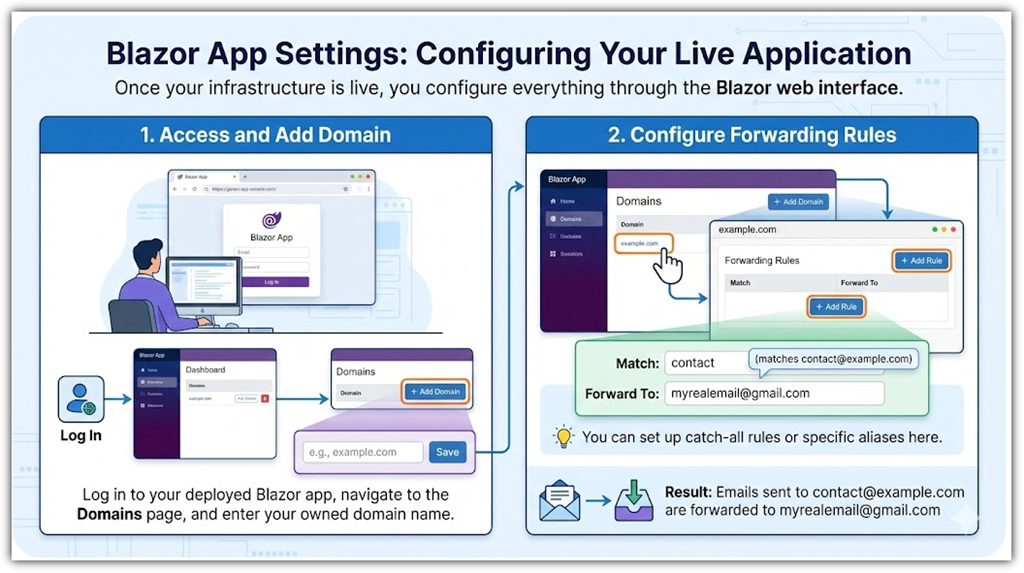
- Log in to your deployed Blazor app.
-
Go to the Domains page.
-
Add Domain: Enter the domain name you own (e.g.,
example.com). -
Forwarding Rules: Click on the domain to add rules.
-
Match:
contact(matchescontact@example.com) -
Forward To:
myrealemail@gmail.com -
You can set up catch-all rules or specific aliases here.
-
SendGrid Configuration
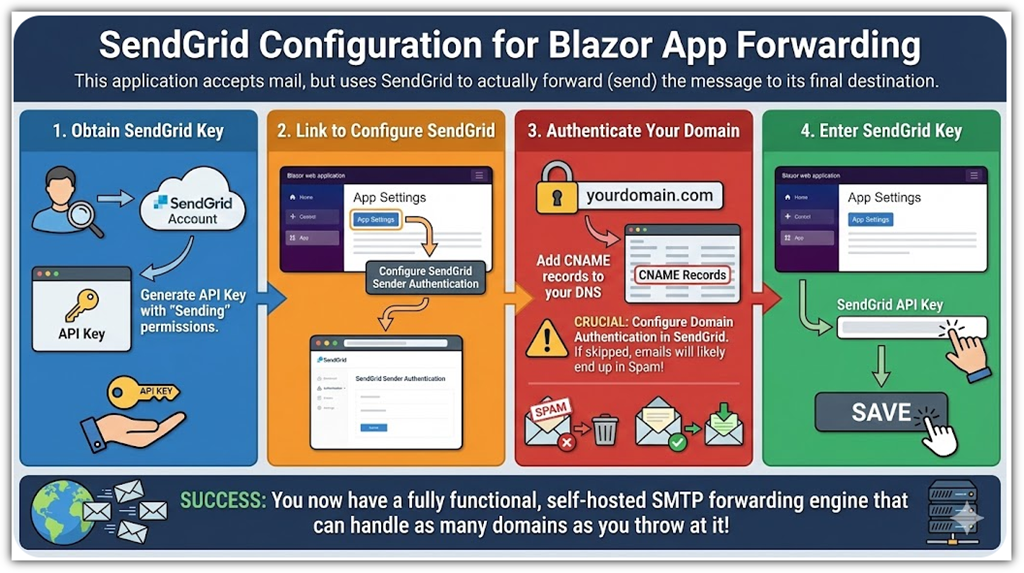
This application accepts mail, but it uses SendGrid to actually forward (send) the message to its final destination.
-
Obtain SendGrid Key: Sign up for a SendGrid account and generate an API Key with "Sending" permissions.
-
Link to Configure SendGrid: In the Blazor App Settings tab, there is a link to SendGrid's Sender Authentication page.
-
Authenticate Your Forwarding Domain: This is a crucial step. You must configure Domain Authentication in SendGrid for the domain you are forwarding from. This usually involves adding CNAME records to your DNS. If you skip this, forwarded emails will likely end up in the recipient's Spam folder.
-
Enter SendGrid Key: Paste your API key into the Blazor App settings and save.
You now have a fully functional, self-hosted SMTP forwarding engine that can handle as many domains as you throw at it!